

The Woo Archive Products widget displays your WooCommerce products in a responsive grid — pulling from your full catalog by default, or narrowed down with a custom query or a hand-picked list of products.
Adding the Widget #
- Open the page in the Elementor editor.
- Search the widget panel for Woo Archive Products, under the BEW Elements category.
- Drag it into any section or column.
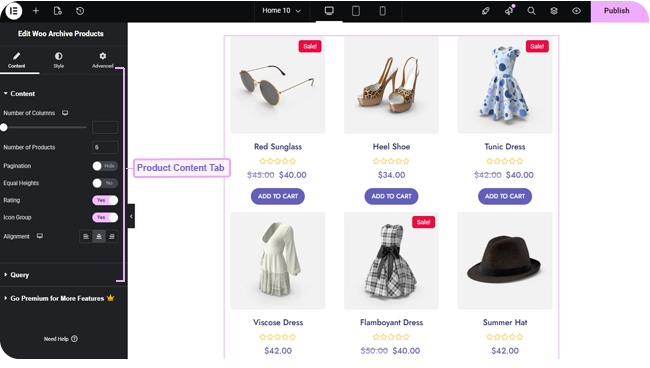
Grid Layout #
- Number of Columns — a responsive slider (up to 6), defaulting to 3 columns on desktop and tablet, 1 on mobile.
- Number of Products — how many products load per page (up to 200; defaults to 10).
- Pagination — off by default; switch on to let visitors page through additional products beyond the first load, with a Left/Center/Right position control for the page numbers.
- Equal Heights, Rating, Icon Group — off/on switches for forcing equal card heights, showing star ratings, and showing the compare/wishlist icon overlay on each card. Rating and Icon Group are on by default.
- Alignment — responsive Left/Center/Right text alignment within each card.
Choosing Which Products Show #
The Query section’s Source control has three modes:
- All Products — your full catalog, respecting each product’s WooCommerce catalog visibility.
- Custom Query — filter by category and/or tag, each with its own Match or Exclude rule, plus an Offset to skip a number of results.
- Manual Selection — pick specific products by name. Leaving this empty intentionally shows no products, rather than falling back to the full catalog.
Regardless of source, you can also set Exclude Products (a manual exclude list) and Exclude Current Product (useful for a “related products” style grid on a single product page), plus an Advanced group with Filter By (None / Featured / Sale), Order By (Date, Title, Price, Popularity, Rating, Random, or Menu Order), and Order (ascending/descending).
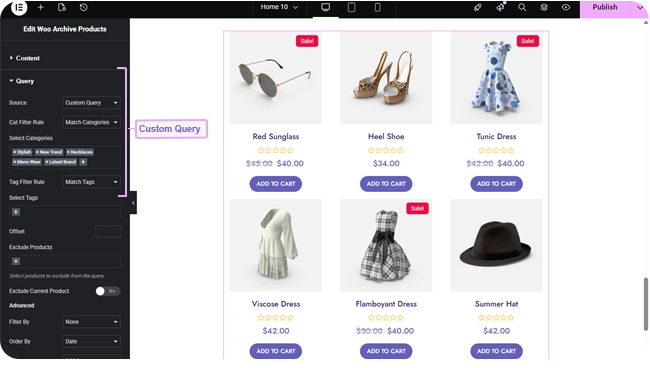
Each product card uses your theme’s own WooCommerce product template — the same image, title, price, rating, sale badge, and Add to Cart button you’d see on a normal shop archive page, so the styling controls below map onto familiar WooCommerce markup.
Styling #
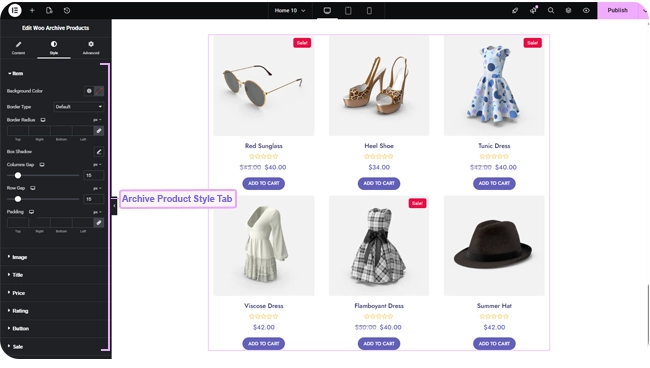
The Style tab has a section for each part of the grid:
- Item — card background, border, border radius, box shadow, column/row gap, and padding.
- Image — opacity and CSS filters for Normal and Hover, hover transition duration, border, border radius, margin, and padding.
- Title — color, hover color, typography, and margin.
- Price — color, hover color, and typography for the current price, plus separate color and typography for the struck-through original price on sale items.
- Rating — star color, filled-star color, star spacing and size, margin.
- Button — typography, Normal/Hover text and background colors, border, border radius, margin, and padding for the Add to Cart / View Product button.
- Sale — typography, colors, border, border radius, margin, and padding for the “Sale!” badge.
- Icon Group — background and icon color for the compare/wishlist overlay icons.
- Pagination — typography, Normal/Hover/Current colors, item size, spacing, border, border radius, and margin (only relevant when Pagination is switched on).
Frequently Asked Questions #
#
Confirm WooCommerce is active and has published products, and check your Query settings — an active Manual Selection with nothing chosen, or a Custom Query whose category/tag filters don’t match anything, will intentionally show no products instead of falling back to the full catalog.
#
Use Custom Query with a matching category or tag, and switch on Exclude Current Product so the product being viewed doesn’t appear in its own related-products grid.
#
200 is the maximum for Number of Products in a single instance of this widget. For a larger catalog, switch on Pagination so visitors can page through the rest.


