

The Woo YITH Wishlist widget adds a wishlist icon that links straight to your store’s wishlist page, for stores using the YITH WooCommerce Wishlist plugin.
Adding the Widget #
- Open the page in the Elementor editor.
- Search the widget panel for Woo YITH Wishlist, under the BEW Elements category.
- Drag it into any section or column — a header is the most common spot.
Note: This widget needs both WooCommerce and the YITH WooCommerce Wishlist plugin active. Without them, it shows an error notice in its place instead of the icon — the message tells you specifically which of the two is missing.
Icon and Label #
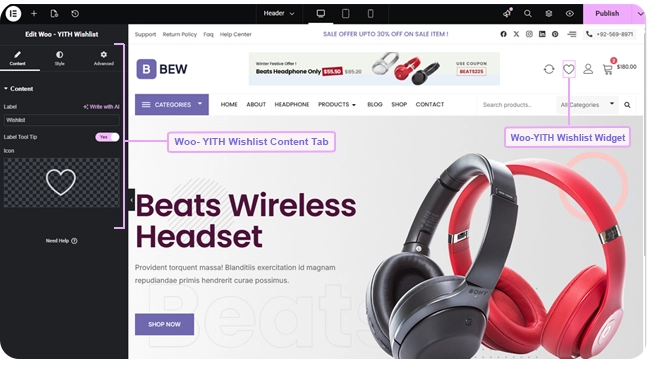
- Label — the text shown with the icon (defaults to “Wishlist”).
- Icon — pick any icon from Elementor’s icon library (defaults to a heart icon).
- Label Tool Tip — switch on to hide the label as regular on-page text and show it as a tooltip on hover instead, leaving just the icon visible normally.
Where the Link Goes #
The icon links directly to your store’s wishlist page, using YITH’s own wishlist URL — the same page visitors reach from YITH’s other “Add to Wishlist” buttons throughout your store.
Styling #
The Style tab has two sections:
- Icon — size, color and background for Normal and Hover states, plus border, border radius, margin, and padding.
- Label — typography, text color, and background for Normal and Hover states, plus border, border radius, margin, and padding. These controls style the label whether it’s shown as regular text or as the Label Tool Tip.
Frequently Asked Questions #
#
Both WooCommerce and the YITH WooCommerce Wishlist plugin. If either is missing, the widget shows an error notice instead of the icon, naming which one to activate.
#
No. Unlike the Woo – Cart widget, this is a static icon and label that link to the wishlist page — it doesn’t display a live item count.
#
It turns the visible label into a tooltip that only appears on hover, instead of permanent text next to the icon.


