

Some templates in the library use widgets that come from third-party plugins — Contact Form 7 or ElementsKit Lite, for example — rather than BEW or Elementor themselves. This guide covers what happens when you insert one of those templates without already having the plugin it needs.
When This Appears #
You won’t see any warning while browsing or previewing — a template’s plugin requirements are only checked at the moment you click Insert. If the check finds a widget tied to a plugin that isn’t active on your site, a Required Plugins prompt appears before anything is added to your page.
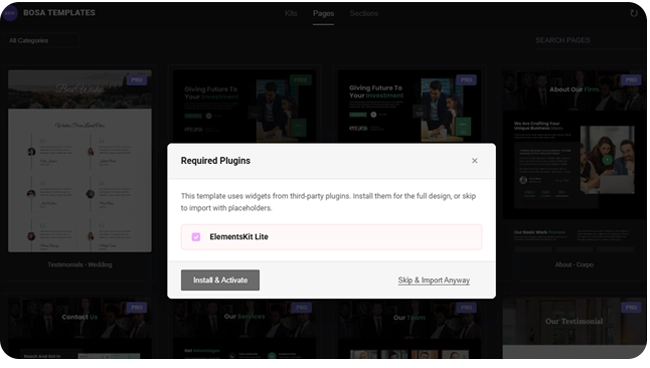
The Required Plugins Prompt #
The prompt explains: “This template uses widgets from third-party plugins. Install them for the full design, or skip to import with placeholders.” Below that is a checklist — one row per plugin the template needs, each with a checkbox that’s checked by default. Occasionally a row appears without a checkbox; that means BEW recognized a widget it couldn’t match to a specific known plugin, so it’s shown for your information only and can’t be installed automatically from here.
Installing the Plugins #
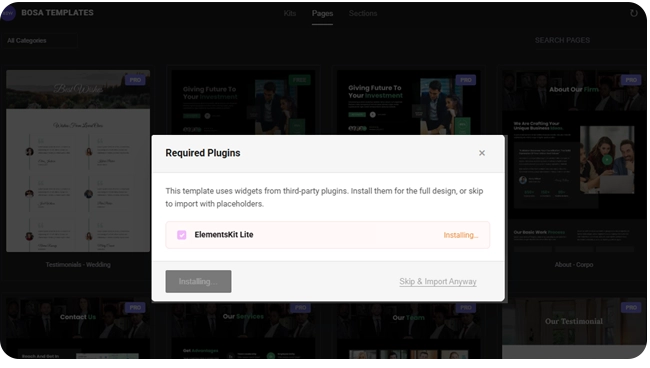
Click Install & Activate to install and activate every checked plugin, one after another. Each row updates live — Installing…, then Installed ✓, or Failed if something went wrong. Once every plugin is ready, the template imports automatically with its full design — you don’t need to click Insert again.
Skipping Instead #
Click Skip & Import Anyway to insert the template right away without installing anything. Any widget that needed a missing plugin is replaced with a plain placeholder box reading “This widget requires {Plugin Name}.” instead of its real content, so the rest of the template still comes through as designed.
To get the full design later, install the plugin yourself and insert the template again — with the plugin now active, it imports normally with no placeholders.
Canceling #
Closing the prompt with its × button cancels the insert entirely — nothing is added to your page, and you’re back in the Template Library exactly where you left off.
Frequently Asked Questions #
#
That row shows Failed, the button re-enables, and nothing has been imported yet. You can try Install & Activate again, or use Skip & Import Anyway to bring in the rest of the design with a placeholder standing in for that one widget.
#
Yes — untick any plugin you’d rather skip before clicking Install & Activate. That widget will show as a placeholder in the imported template instead.
#
Install the plugin, then insert that same template again — since the placeholder swap only happens when a plugin is genuinely missing, a fresh insert with the plugin already active brings in the real widget instead.


