

This guide covers every control inside the Template Library panel — the tabs, search, filtering, scrolling, syncing, and the template cards themselves.
Tabs: Kits, Pages, Sections #
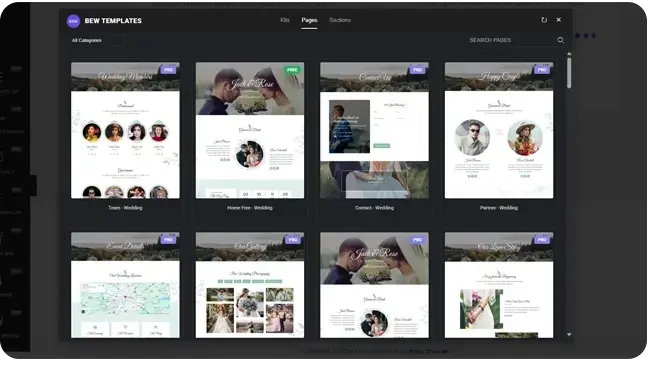
Three tabs sit at the top of the panel: Kits, Pages, and Sections. Pages is selected by default each time you open the panel. Switching tabs reloads the grid and gives you that content type’s own category list and search — see the next doc, About Kits, Pages & Sections, for what each type actually means.
Searching #
The search box filters the current tab’s templates by title as you type — there’s no button to click or Enter key to press, it updates automatically a moment after you stop typing.
Filtering by Category #
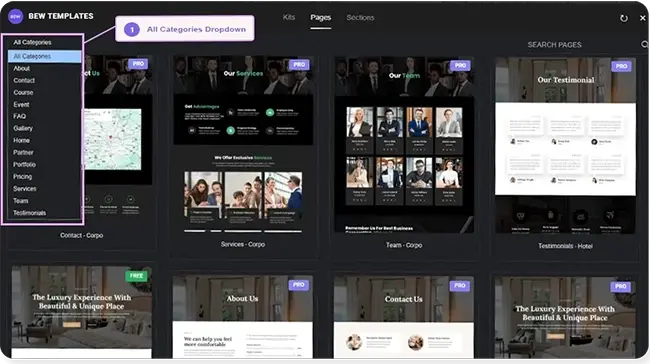
The dropdown next to the search box narrows the current tab to one category at a time, defaulting to All Categories. The category list is specific to whichever tab you’re on.
Browsing the Grid #
Templates load automatically as you scroll down — there’s no “Load More” button to click. Once you’ve reached the end of a search or category’s results, a note lets you know: “Stay tuned! More awesome templates coming soon.”
Switching back to a tab, category, or search you’ve already viewed in this editing session is instant — it doesn’t need to reload from scratch.
Keeping the Library in Sync #
The library refreshes its template list automatically roughly once a day, so new additions to the collection show up on their own without you doing anything. If you want the very latest list right away, click the small refresh (⟳) icon near the top of the panel to sync immediately.
The Template Card #
- Thumbnail — a preview image of the design; clicking it opens the full preview.
- Free / Pro badge — shown on every Page and Section card (Kit cards don’t carry one), telling you upfront whether inserting it needs a BEW Pro license.
- Insert button — appears on Page and Section cards when you hover or focus them, letting you insert without opening the preview first. If the template needs BEW Pro and you don’t have it active, this becomes a Go Pro link instead.
- Item count — Kit cards show a number instead of an Insert button, indicating how many pages and sections that Kit contains.

Previewing a Template #
Clicking a Page or Section card’s thumbnail opens a larger preview screenshot right inside the panel — it’s a static image, not a live, interactive version of the page, and there’s no desktop/tablet/mobile size toggle. When a live demo is available for that template, a Live Preview link opens the real page on Bosa Themes’ demo site in a new browser tab.
From the preview, you can click Insert directly — there’s no need to go back to the grid first. Use the ← Back button to return to where you were, or the × button to close the whole panel.

Note: Kits don’t have their own preview screen. Clicking a Kit card takes you into that Kit’s contents instead — see About Kits, Pages & Sections.
When Nothing Shows Up #
If a search or category filter has no matches — or if the library briefly can’t reach Bosa Themes’ template server — you’ll see the same message: “No templates found.” If you believe there should be results, try clearing your search, switching category back to All Categories, or checking your site’s internet connection.
Frequently Asked Questions #
#
Search matches template titles. To browse by topic instead, use the category dropdown alongside it.
#
Not currently — there’s no Free/Pro filter toggle. Each card’s badge tells you which is which as you browse.
#
The library already refreshes on its own roughly daily, so most of the time you don’t need it. Use the refresh button if you specifically want to check for brand-new templates right now rather than waiting for the next automatic refresh.


