

BEW adds a set of ready-made Elementor widgets for WooCommerce stores and general site building — product grids, carousels, category displays, cart and search tools, a blog widget, and a few others. This guide is the starting point: where to find them, how to add one to a page, and what’s available.
Where to Find the Widgets #
Open any page in the Elementor editor and look at the widget panel on the left. BEW’s widgets live in their own category, BEW Elements, pinned to the very top of the panel so they’re easy to find.
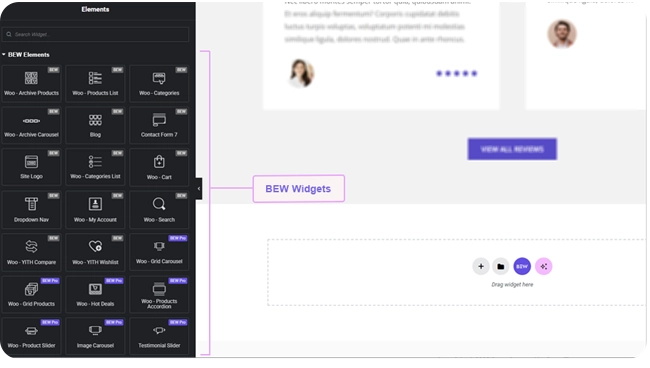
You can also type a widget’s name into the panel’s search box — for example “Woo” to find every WooCommerce-related widget at once.
Adding a Widget to Your Page #
- Open the page in the Elementor editor.
- Find the widget you want under the BEW Elements category (or search for it by name).
- Drag it onto the page, into any section or column.
- Use the Content tab in the left panel to configure what the widget shows — number of items, source, columns, and similar settings vary by widget.
- Use the Style tab to match colors, spacing, and typography to your theme.

Every BEW widget follows Elementor’s own Content / Style / Advanced pattern, so if you’ve used Elementor before, nothing here will feel unfamiliar.
The BEW Elements Widgets #
Product Display
- Woo Archive Products — a responsive product grid, pulling from your WooCommerce catalog.
- Woo Products List — the same product data in a list layout instead of a grid.
- Woo Archive Carousel — products in a sliding carousel.
Categories & Navigation
- Woo Categories — product categories displayed as an image grid.
- Woo Categories List — the same categories in a compact list.
- Dropdown Nav — a dropdown category navigation menu.
Shopping Tools
- Woo Cart — a cart icon with live item count, linking to the cart page.
- Woo Search — a product search box with an optional category filter.
- Woo My Account — the WooCommerce login / account area, styled to match your page.
- Woo YITH Compare — a “compare” button for the YITH WooCommerce Compare plugin.
- Woo YITH Wishlist — a “wishlist” button for the YITH WooCommerce Wishlist plugin.
Content & Branding
- Blog — a grid or list of your blog posts, with title, excerpt, thumbnail, and a read-more link.
- Site Logo — your site’s logo, with its own image and sizing controls independent of the theme’s own logo settings.
- Contact Form 7 — embeds one of your existing Contact Form 7 forms with BEW’s own styling controls.
Requirements #
Every widget above needs Elementor active to appear at all. Beyond that:
- Widgets labeled Woo pull live data from WooCommerce, so WooCommerce needs to be active and have some products, categories, and/or orders for them to show real content.
- Woo YITH Compare and Woo YITH Wishlist each need their matching YITH plugin (YITH WooCommerce Compare / YITH WooCommerce Wishlist) active.
- Contact Form 7 needs the Contact Form 7 plugin active, plus at least one form already created in it.
- Blog and Site Logo have no extra requirements beyond Elementor itself.
Note: A widget that needs a plugin which isn’t active will either show a short notice in its place or simply display nothing on the live page — it won’t break the rest of your layout.
Frequently Asked Questions #
#
Only for the widgets that display WooCommerce data (anything labeled “Woo -“). Blog, Site Logo, and Contact Form 7 work without WooCommerce installed.
#
Confirm both BEW and Elementor are active, and that you’re editing the page with Elementor (not the native WordPress block editor). If it’s still missing, try refreshing the editor — a stale cached panel can occasionally hide a newly activated plugin’s widgets.
#
Yes — most text and image fields on these widgets support BEW AI’s Text and Image Generators. See the Getting Started with BEW AI guide for how that works.
#
Some widgets are always available for free in BEW – Elementor Addons, Templates & AI Builder. Widgets marked with the Pro tag are available with BEW Pro. You can upgrade to BEW Pro to access all Pro widgets, modules, AI generators, and other Pro features.


