

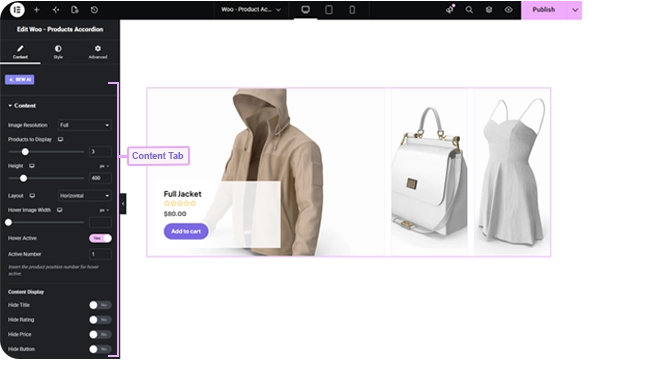
The Woo Products Accordion widget shows a row (or column) of narrow product image panels that expand on hover to reveal the product’s title, rating, price, and Add to Cart button — a compact way to showcase several products in one horizontal or vertical strip.
Note: This widget requires an active BEW Pro license. “Accordion” here refers to the panels expanding and collapsing on hover, not a Q&A-style FAQ list.
Adding the Widget #
- Open the page in the Elementor editor.
- Search the widget panel for Woo Products Accordion, under the BEW Elements category.
- Drag it into any section or column.
Layout #
- Products to Display — how many panels appear at once (responsive, up to 10; defaults to 5 on desktop).
- Height — the overall accordion’s height (responsive; defaults to 500px).
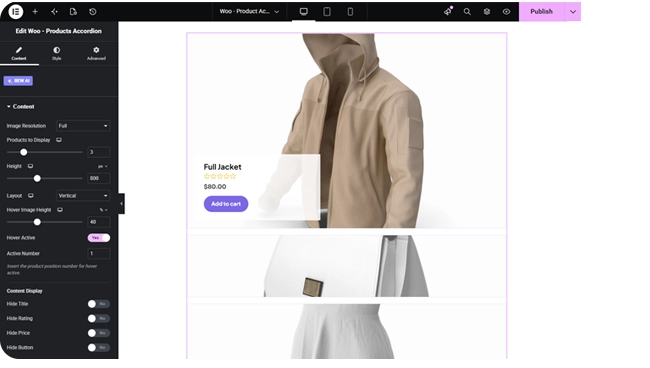
- Layout — Horizontal (default) or Vertical. Horizontal panels expand wider on hover; vertical panels expand taller.
- Hover Image Width (Horizontal layout) or Hover Image Height (Vertical layout) — how much space the hovered panel takes up (defaults to 40% in Vertical layout).
- Image Size — which registered WordPress image size to use (defaults to Medium).
Hover Active #
Switch on Hover Active (off by default) to keep one panel permanently expanded, without needing a visitor to hover it — useful for a “featured” panel, or on touch devices where hover doesn’t apply. Active Number sets which panel by position (1st, 2nd, and so on), shown only when Hover Active is on.
Content Display #
Each expanded panel shows the product’s title, rating, price, and Add to Cart button by default. Four independent switches — Hide Title, Hide Rating, Hide Price, Hide Button — let you remove any of them.
Choosing Which Products Show #
The Query section’s Source control has three modes:
- All Products — your full catalog, respecting each product’s WooCommerce catalog visibility.
- Custom Query — filter by category and/or tag, each with its own Match or Exclude rule, plus an Offset to skip a number of results.
- Manual Selection — pick specific products by name.
Regardless of source, you can also set Exclude Products, Exclude Current Product, Number of Products (up to 200, defaults to 10), and an Advanced group for Filter By (None / Featured / Sale), Order By, and Order.
Styling #
- General — the outer wrapper: background overlay color, gap between image and content, border, border radius, box shadow, margin, padding.
- Item — content width, horizontal and vertical position, content alignment, background color, border, border radius, box shadow, margin, padding.
- Image — opacity and CSS filters for Normal and Hover, hover transition duration, border, border radius.
- Title, Rating, Price, Button, Sale — the same set of card-content style sections used across the other product widgets (colors, typography, borders, spacing for each).
Frequently Asked Questions #
#
Each product is a narrow image panel that expands to reveal its details when hovered, and collapses again when you move to another panel — similar to how an accordion menu expands one section at a time, applied to a row of product images instead of text.
#
Turn on Hover Active and set Active Number to pick one panel that stays expanded by default, so its details are visible without needing a hover.
#
Horizontal suits a wide banner-style row of products; Vertical suits a taller, narrower space like a sidebar. Both use the same content and query settings — only the expand direction changes.


