Skip to content
default-logo
  • Home
  • Templates
  • Widgets
  • Modules
  • AI Builder
  • Pricing
  • Support
Buy Now

Getting Started

2
  • How to Install & Update BEW
  • How to Install, Activate & Update BEW Pro

How to use BEW Template Library

5
  • Getting started with Template Library
  • About Kits, Pages & Sections
  • Template Library Modal Guide
  • How to Insert Templates
  • Required Plugins When Inserting Templates

How to use BEW Widgets

24
  • Getting started with Widgets
  • How to Setup BEW Site Logo
  • How to use Dropdown Nav
  • How to use Woo Cart
  • How to use Woo Search
  • How to use Woo My Account
  • How to use Woo YITH Wishlist
  • How to use Woo YITH Compare
  • How to use Blog Grid
  • How to use Contact Form 7
  • How to use Woo Categories
  • How to use Woo Products List
  • How to use Woo Categories List
  • How to use Woo Archive Carousel
  • How to use Woo Archive Products
  • How to use Image Carousel [ PRO ]
  • How to use Testimonial Slider [ PRO ]
  • How to use Woo Product Slider [ PRO ]
  • How to use Woo Product Accordion [ PRO ]
  • How to use Woo Product Tabs [ PRO ]
  • How to use Woo Grid Carousel [ PRO ]
  • How to use Woo Hot Deals [ PRO ]
  • How to use Woo Grid Products [ PRO ]
  • How to use Query Management

How to use BEW Site Modules

4
  • Getting started with Site Modules
  • How to use Back to Top
  • How to use Site Preloader
  • How to use Reading Progressbar [PRO]

How to use BEW AI Builder

11
  • Getting Started with BEW AI
  • AI Provider Integration
  • How to use Text Generator
  • How to use Image Generator
  • How to use Bulk Text & Image Generator
  • How to use Repeater Generator
  • How to use Products Generator
  • How to use Blog Generator
  • How to use Saved Presets
  • How to use Generation History
  • Troubleshooting AI Builder

Frequently Asked Questions (FAQs)

1
  • BEW Frequently Asked Questions
View Categories
  • Home
  • Docs
  • How to use BEW Template Library
  • About Kits, Pages & Sections

About Kits, Pages & Sections

1 min read

The Template Library organizes its designs into three types — Pages, Sections, and Kits. This guide explains what each one is, and how Kits in particular are put together.

Pages #

A complete, ready-to-use page design — a full homepage, about page, contact page, and so on. Insert one to replace what you’d otherwise build from an empty page.

Sections #

One piece of a page rather than the whole thing — a hero banner, a pricing table, a testimonials block, a call-to-action, and similar. Use Sections to build a page up piece by piece, or to add a single polished block to a page you’re otherwise building yourself.

Kits #

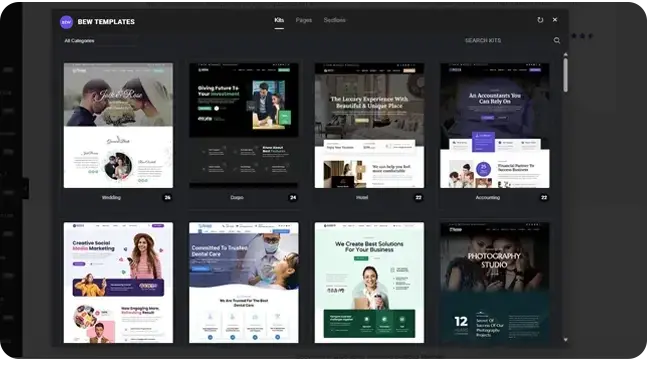
A Kit is a curated bundle of Pages and Sections designed to match each other — for example, a complete small-business site’s Home, About, and Contact pages, built with a consistent look. A Kit is a way to browse a matching set of designs together, not a single thing you insert in one click.

Clicking a Kit card doesn’t insert anything — it opens that Kit’s own contents as a grid of individual Page and Section cards. From there, each one works exactly like browsing the Pages or Sections tab directly: its own thumbnail, its own Free/Pro badge, its own Insert button. You pick and insert them one at a time.
Note: There’s no single “install this whole Kit” action. If you want every page in a Kit, insert them one at a time, on their own pages.

On the main Kits tab, each card shows a number instead of an Insert button — the total count of pages and sections that Kit contains, so you know how much is inside before opening it.

Categories #

Kits, Pages, and Sections share the same category system, but the category dropdown always narrows to whichever tab you’re currently viewing — picking a category on the Sections tab won’t affect what shows on the Pages or Kits tabs.

Frequently Asked Questions #

#

No. Opening a Kit shows you its individual pages and sections, and you insert each one you want separately, the same way you would from the Pages or Sections tab.

#

No — inserting a Page or Section only adds that design’s own content to the page you’re editing. It doesn’t change your site’s global colors, fonts, or other Site Settings.

#

A Page is a complete page design. A Section is just one piece of a page — a single block like a hero, a pricing table, or a testimonials row — meant to be combined with other content.

Updated on September 2, 2026

What are your Feelings

  • Happy
  • Normal
  • Sad

Share This Article :

  • Facebook
  • X
  • LinkedIn
  • Pinterest
Getting started with Template LibraryTemplate Library Modal Guide
Table of Contents
  • Pages
  • Sections
  • Kits
  • Categories
  • Frequently Asked Questions
    • Can I insert an entire Kit at once?+
    • If I insert pages from a Kit, will my site's colors and fonts change to match it?+
    • What's the difference between a Page and a Section?+
bew-logo-white

Everything you need to build with Elementor: widgets, site modules, ready-made templates, and AI content generation, all in one plugin.

Company
  • Affiliate Program
  • Privacy Policy
  • Terms & Conditoins
  • Our Blog
Product
  • Features
  • Plans & Pricing
Support
  • Support Center
  • My Account
  • Community Forum

Copyright © 2026 BEW. Made with

  • by
  • Bosa Themes