

BEW AI brings AI content generation directly into the Elementor editor, using your own AI provider account. This guide is the starting point — a quick tour of what’s available and how the pieces fit together.
The Core Idea #
BEW AI doesn’t run its own AI service. You connect an AI provider with your own API key, and every generator uses that connection to create content — text, images, or both — right inside the field or widget you’re already editing. You pay the provider directly, at their normal rates; BEW AI never adds a markup or requires a separate subscription for generation itself.
Free vs. Pro, at a Glance #
Text Generator is included in the free BEW plugin. The other five generators — Image, Bulk Text & Image, Repeater, Products, and Blog Generator — require an active BEW Pro license.
Setting Up #
- Go to BEW → Settings → AI Builder.
- Under AI Features, make sure the generators you want to use are switched on. Disabled features don’t appear in the editor at all.
- Under AI Provider Integration, connect at least one AI provider with your own API key. See the dedicated AI Provider Integration guide for the full walkthrough.
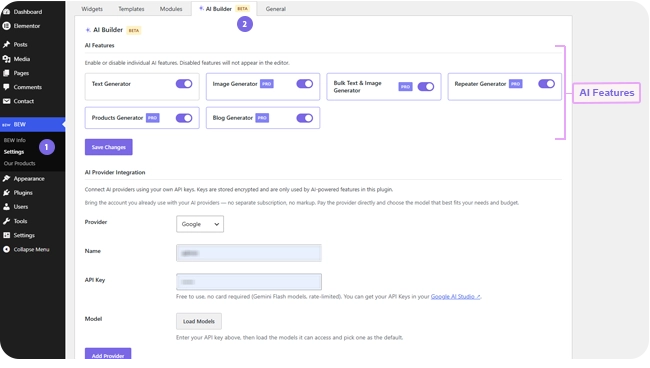
That’s it — every generator you’ve enabled will now show a ✨ BEW AI button on its eligible fields.
The Six Generators #
- Text Generator — Generate headlines, descriptions, or any text field, one field at a time. How to use Text Generator
- Image Generator — generate original images for any image field, one field at a time. How to use Image Generator
- Bulk Text & Image Generator — generate every eligible field on one widget in a single pass. How to use Bulk Text & Image Generator
- Repeater Generator — generate across every item in a repeater-based widget, like the slides in an Image Carousel. How to use Repeater Generator
- Products Generator — generate titles, descriptions, and images for real WooCommerce products and categories. How to use Products Generator
- Blog Generator — generate titles, content, excerpts, and featured images for real blog posts. How to use Blog Generator
Each has its own dedicated guide covering exactly where to find it and how to use it. Products and Blog Generator work differently from the other four — they write directly to the underlying database record instead of a widget’s own settings, so read their guides before your first run.
Two Features Every Generator Shares #
Generation History saves every applied generation automatically, so you can browse past results and restore one instantly without generating again. How to use Generation History
Saved Presets let you save a reusable instruction once and apply it on any field, in any generator, instead of retyping it. How to use Saved Presets
Both work exactly the same way regardless of which generator you’re using — see their own dedicated guides for the details.
Frequently Asked Questions #
#
No. Connect a provider once and enable the AI Features you want — every generator you’ve turned on reuses that same connection.
#
Yes, it currently carries a Beta label in the editor and Settings page while it’s actively being refined. It’s fully usable — the label is there to set expectations, not to warn you off.
#
Connect a provider first using the AI Provider Integration guide, then open the Text Generator guide — it’s the simplest generator and the fastest way to see how the generate → preview → apply flow works before trying the others.


