

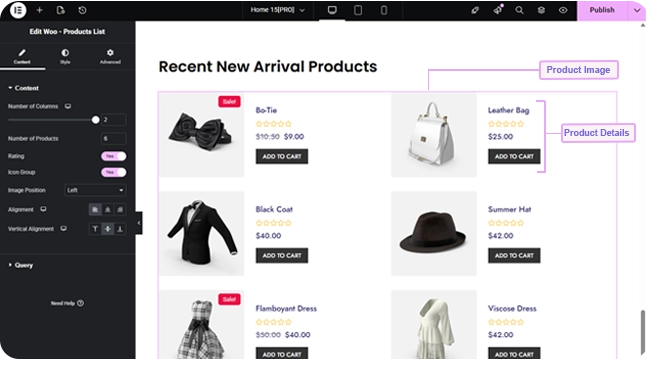
The Woo Products List widget shows WooCommerce products as a stacked list rather than a grid — the same product data as Woo Archive Products, laid out with the image beside the details instead of above them.
Adding the Widget #
- Open the page in the Elementor editor.
- Search the widget panel for Woo Products List, under the BEW Elements category.
- Drag it into any section or column.
List Layout #
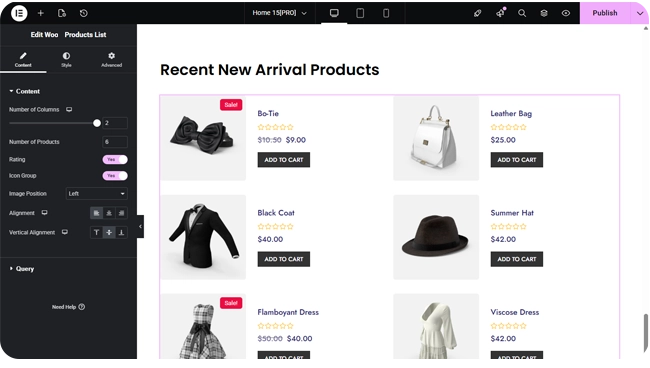
- Number of Columns — a responsive slider up to 2, defaulting to a single column on every device — this widget is a list first, and only becomes a 2-column layout if you raise it.
- Number of Products — how many products to show (up to 200; defaults to 4). There’s no pagination on this widget — it’s a fixed-length list.
- Rating and Icon Group — on by default; switches to hide the star rating or the compare/wishlist icon overlay.
- Image Position — Left (default) or Right, placing the product image on either side of the title/price/button block.
- Alignment and Vertical Alignment — responsive controls for how the text block aligns horizontally (defaults left) and vertically (defaults center) next to the image.
Choosing Which Products Show #
The Query section works identically to Woo – Archive Products: a Source of All Products, Custom Query (category/tag Match or Exclude rules, with an Offset), or Manual Selection, plus Exclude Products, Exclude Current Product, and an Advanced group for Filter By (None / Featured / Sale), Order By, and Order.
Styling #
The Style tab mirrors Woo Archive Products, with a section for each part of the list:
- Item — row background, border, border radius, box shadow, column/row gap, and padding.
- Image — opacity and CSS filters for Normal and Hover, hover transition duration, border, border radius, margin, and padding.
- Title — color, hover color, typography, and margin.
- Price — color, hover color, and typography for the current price, plus separate color and typography for the struck-through original price on sale items.
- Rating — star color, filled-star color, star spacing and size, margin.
- Button — typography, Normal/Hover text and background colors, border, border radius, margin, and padding.
- Sale — typography, colors, border, border radius, margin, and padding for the “Sale!” badge.
- Icon Group — background and icon color for the compare/wishlist overlay icons.
Frequently Asked Questions #
#
Same product data and query options, different layout: this widget defaults to a single-column stacked list with the image beside the details, has a lower column cap (2 instead of 6), and doesn’t include pagination.
#
Yes, raise Number of Products up to 200. Since this widget has no pagination, everything you set loads at once — for a long list, Woo – Archive Products with Pagination switched on is usually a better fit.
#
Yes — set Image Position to Right in the Content tab.


