

Generate headlines, descriptions, and any text field in your Elementor widgets using AI — right inside the editor, using your own AI provider API key.
What is the Text Generator? #
The Text Generator is BEW AI’s core writing assistant, built directly into the Elementor editor. Instead of switching to a separate AI chat tool and copy-pasting content back into your page, you generate text exactly where it belongs — inside the widget field you’re editing — and apply it with one click.
The Text Generator is BEW AI’s core content-generation tool, built directly into the Elementor editor. Instead of switching to a separate AI tool and copy-pasting content back into your page, you can generate text directly within the widget field you’re editing and apply the results with one click.
Text Generator is included in the free BEW – Elementor Addons, Templates & AI Builder plugin. No Pro license is required to use it.
Before You Start: Connect an AI Provider #
Text Generator uses your own API key with an AI provider of your choice. You bring the account you already use — there’s no separate subscription and no markup added on top of your usage.
- Go to BEW → Settings → AI Builder.
- Open the AI Providers section and choose a provider — Google, OpenAI, Anthropic (Claude), Replicate, OpenRouter, Mistral, xAI (Grok), Perplexity, or Groq.
- Paste in your API key and save.
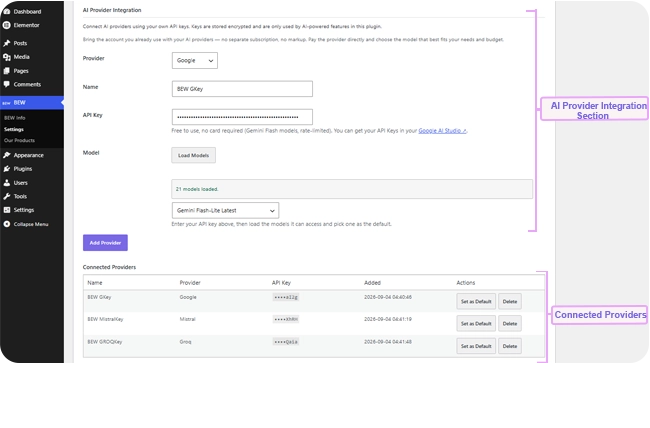
You only need to do this once. Every AI generator in BEW AI reuses the same connected providers.
Note: The BEW AI button only appears in the editor once at least one provider is connected.
Where to Find It #
Open any page in the Elementor editor and select a widget with a text field — for example a Heading, Text Editor, Button, Icon List, Icon Box, or Image Box. Next to the field’s label, you’ll see a small ✨ BEW AI button.
This button appears on any text or textarea control BEW AI recognizes, across Elementor’s own widgets, BEW’s own widgets, and several supported third-party widgets.

How to Generate Text #
- Click the ✨ BEW AI button next to the field you want to write.
- Choose a Provider and Model. If you’ve only connected one provider, this is already selected for you.
- (Optional) Add an Instruction — a short note describing tone, length, or angle, such as “make it shorter, more playful” or “write for a B2B audience.” You can leave this blank and let the AI use the field’s own context.
- Click Generate.

- Review the result in the editable preview. Make any manual edits you like — it’s just a normal text box.
- Click Apply to write it into the field, or Cancel to discard it and keep what was there before.

Nothing changes on your page until you click Apply.
Reusing Instructions with Presets #
If you find yourself typing the same kind of instruction over and over, save it as a preset:
- Type your instruction, then click Save as preset.
- Give it a short name and confirm.
Next time, open the Load a saved preset dropdown to apply it instantly, on any field, on any page. Manage your saved presets — rename or delete them — from the Manage presets link above the instruction field.

Browsing Previous Generations #
Every generation you make is saved automatically per field, so you never lose a version you liked. Click the history icon on the field to browse past attempts and restore any of them without generating again.

Tips for Better Results #
- Be specific in your instruction — “shorter and punchier” gets better results than “improve this.”
- If a field already has content, the AI uses it as context by default; add an instruction if you want a completely different direction.
- Try a different model from the Provider/Model dropdown if a result isn’t quite right — different models have different strengths.
Frequently Asked Questions #
#
No. You pay your AI provider directly, at their normal rates, using your own API key. BEW AI doesn’t add a markup or require a separate subscription for Text Generator.
#
Check three things: an AI provider is connected (BEW → Settings → AI Builder), Text Generator is enabled (BEW → Settings → AI Builder → AI Features), and the field is a supported text or textarea type.
#
Your instructions and field content are sent directly to the AI provider you’ve connected, using your own API key — the same way any request to that provider’s API would work.
#
Yes — use Elementor’s own Undo (Ctrl/Cmd+Z), or open the field’s History to restore an earlier version.


