Skip to content
default-logo
  • Home
  • Templates
  • Widgets
  • Modules
  • AI Builder
  • Pricing
  • Support
Buy Now

Getting Started

3
  • How to Install & Update BEW
  • How to Install, Activate & Update BEW Pro
  • BEW Dashboard & Settings Overview

How to use BEW Template Library

5
  • Getting started with Template Library
  • About Kits, Pages & Sections
  • Template Library Modal Guide
  • How to Insert Templates
  • Required Plugins When Inserting Templates

How to use BEW Widgets

24
  • Getting started with Widgets
  • How to Setup BEW Site Logo
  • How to use Dropdown Nav
  • How to use Woo Cart
  • How to use Woo Search
  • How to use Woo My Account
  • How to use Woo YITH Wishlist
  • How to use Woo YITH Compare
  • How to use Blog Grid
  • How to use Contact Form 7
  • How to use Woo Categories
  • How to use Woo Products List
  • How to use Woo Categories List
  • How to use Woo Archive Carousel
  • How to use Woo Archive Products
  • How to use Image Carousel [ PRO ]
  • How to use Testimonial Slider [ PRO ]
  • How to use Woo Product Slider [ PRO ]
  • How to use Woo Product Accordion [ PRO ]
  • How to use Woo Product Tabs [ PRO ]
  • How to use Woo Grid Carousel [ PRO ]
  • How to use Woo Hot Deals [ PRO ]
  • How to use Woo Grid Products [ PRO ]
  • How to use Query Management

How to use BEW Site Modules

4
  • Getting started with Site Modules
  • How to use Back to Top
  • How to use Site Preloader
  • How to use Reading Progressbar [PRO]

How to use BEW AI Builder

11
  • Getting Started with BEW AI
  • AI Provider Integration
  • How to use Text Generator
  • How to use Image Generator
  • How to use Bulk Text & Image Generator
  • How to use Repeater Generator
  • How to use Products Generator
  • How to use Blog Generator
  • How to use Saved Presets
  • How to use Generation History
  • Troubleshooting AI Builder

Frequently Asked Questions (FAQs)

1
  • BEW Frequently Asked Questions
View Categories
  • Home
  • Docs
  • How to use BEW AI Builder
  • Troubleshooting AI Builder

Troubleshooting AI Builder

3 min read

Answers to the most common issues across every BEW AI generator — the button not showing up, an empty model list, and errors when generating.

The ✨ BEW AI button doesn’t appear on a field #

Check these, in order:

  1. An AI provider is connected under BEW → Settings → AI Builder → AI Provider Integration. No button appears anywhere until at least one provider is connected.
  2. That specific generator is switched on under AI Features on the same settings page.
  3. If it’s one of the five Pro generators, your BEW Pro license is active.
  4. The field or widget is actually a supported type for that generator. Not every field is eligible — see that generator’s own guide for which widgets and fields it covers.

For Products and Blog Generator specifically, the button only appears once the widget has real products, categories, or posts actually rendering in the preview — an empty widget has nothing for BEW to detect.

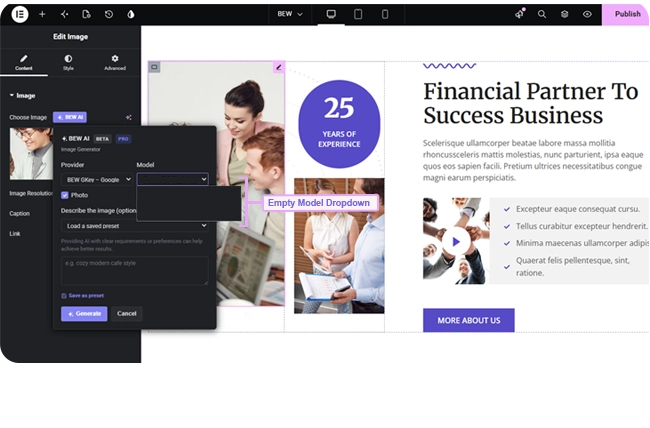
The Model dropdown is empty #

This means the connected provider doesn’t have a model loaded that matches what you’re generating — most often, you’re generating an image and the connected provider or model doesn’t support image generation. Connect a provider that offers an image-capable model, or load models again for your existing connection under AI Provider Integration.
“This API key was rejected” #

The provider itself has refused the key — it’s incorrect, expired, or has been revoked. Check the key against your provider’s own dashboard, and reconnect it under AI Provider Integration if needed.

“Rate limit or quota reached for this API key” #

The key itself is valid — you’ve simply hit that provider’s own usage limit, whether that’s a free-tier rate limit or a paid quota you’ve used up. Wait a moment and try again, or check your usage on the provider’s own dashboard.

“The provider is having issues right now” #

This means the provider’s own service returned a server error — not something wrong with your key or your instruction. It’s on their end; try again shortly.

Nothing changed after I clicked Apply #

For Text, Image, Bulk, and Repeater Generator, Apply writes into the widget’s own Elementor setting — if you don’t see the change, make sure you’re looking at the right field, and that the widget itself is selected in the editor.

For Products and Blog Generator, Apply writes directly to the real product, category, or post record. The change is live in your store or blog immediately, even though it may not visibly refresh in the current preview until you reload it.

I need to undo a generation #

For Text, Image, Bulk, and Repeater Generator, Elementor’s own Undo (Ctrl/Cmd+Z) covers it, since the change lives in the page’s own settings. For Products and Blog Generator, it doesn’t — those write to a database record outside the page itself, so use that field’s own Generation History to restore the previous version instead.

Still Stuck? #

Double-check the specific generator’s own guide — each one covers its exact requirements and field types in more detail than fits here.

Updated on September 7, 2026

What are your Feelings

  • Happy
  • Normal
  • Sad

Share This Article :

  • Facebook
  • X
  • LinkedIn
  • Pinterest
How to use Generation HistoryGetting Started with BEW AI
Table of Contents
  • The ✨ BEW AI button doesn't appear on a field
  • The Model dropdown is empty
  • "This API key was rejected"
  • "Rate limit or quota reached for this API key"
  • "The provider is having issues right now"
  • Nothing changed after I clicked Apply
  • I need to undo a generation
  • Still Stuck?
bew-logo-white

Everything you need to build stores and websites with Elementor: widgets, modules, 2,500+ templates, and AI content generation — all in one plugin.

Company
  • Affiliate Program
  • Privacy Policy
  • Terms & Conditions
  • Blog & News
Support
  • Support Center
  • Documentation
  • My Account
  • Community Forum
Product
  • Features
  • Templates (3,000+ library)
  • AI Builder
  • Plans & Pricing

Copyright © 2026 BEW. Made with

  • by
  • Bosa Themes