

After activating BEW, a new BEW menu appears in your WordPress dashboard. This is where you manage widgets, templates, modules, AI settings, and your plugin version.
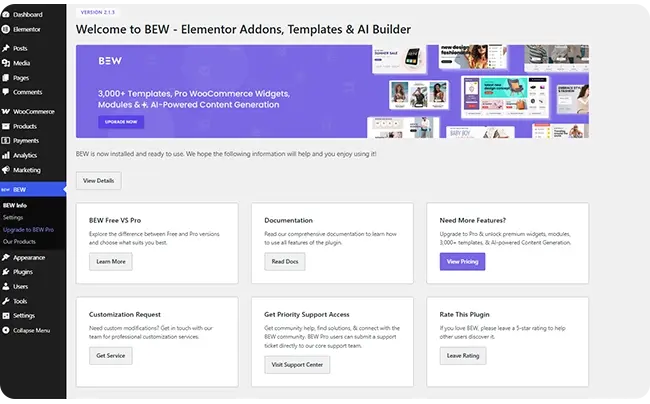
BEW Menu #
- BEW Info: Plugin overview and quick links.
- Settings: All BEW options, organized in tabs (explained below).
- Upgrade to BEW Pro: Compare plans and upgrade to unlock all Pro features.
- Our Products: Other products from Bosa Themes that work well with BEW.
Settings Tabs #
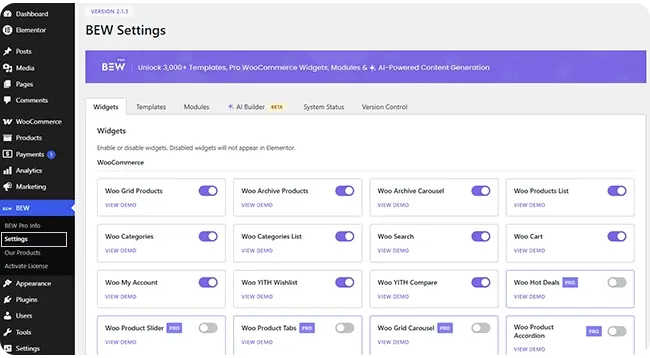
Go to BEW → Settings to open the settings page.
Widgets #
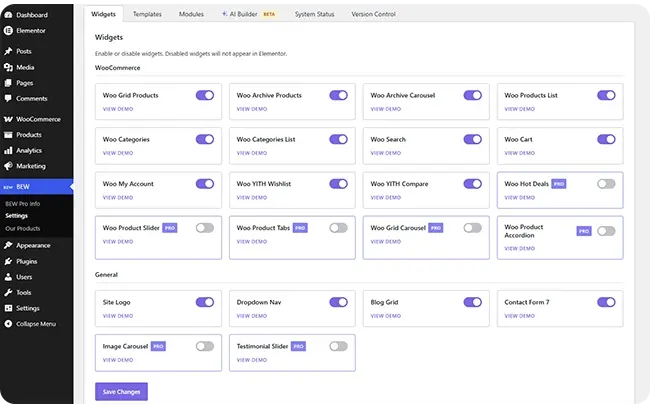
Enable or disable each BEW widget. Disabled widgets won’t appear in the Elementor editor, which keeps the widget panel clean.
- Widgets are grouped into WooCommerce and General.
- Widgets marked PRO require BEW Pro.
- WooCommerce widgets require the WooCommerce plugin to be active. Until it is, their toggles are disabled. Your saved settings are kept.
Learn more in How to use BEW Widgets.
Templates #
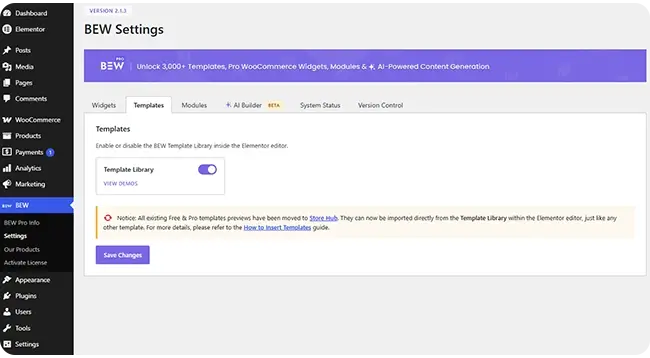
Settings for the BEW Template Library. To browse and insert templates, open any page with Elementor and click the BEW Templates icon.
Learn more in How to use BEW Template Library.
Modules #
Turn site-wide modules on or off, such as Back to Top, Site Preloader, and Reading Progress Bar (Pro). Click Save Changes after making changes.
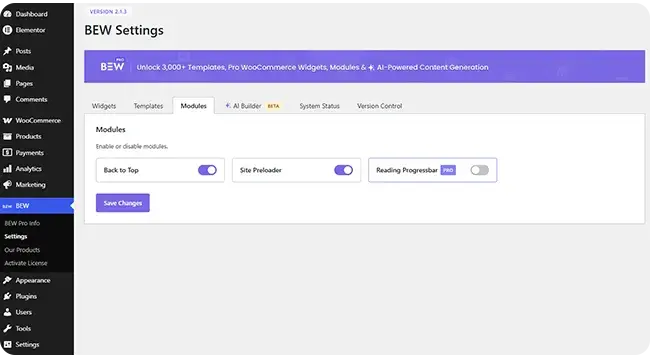
Learn more in How to use BEW Site Modules.
AI Builder #
Connect your preferred AI provider and enter your own API key to use BEW’s AI content generators in the Elementor editor. Supported providers include Google, OpenAI, Anthropic (Claude), Replicate, OpenRouter, Mistral, xAI (Grok), Perplexity, and Groq.
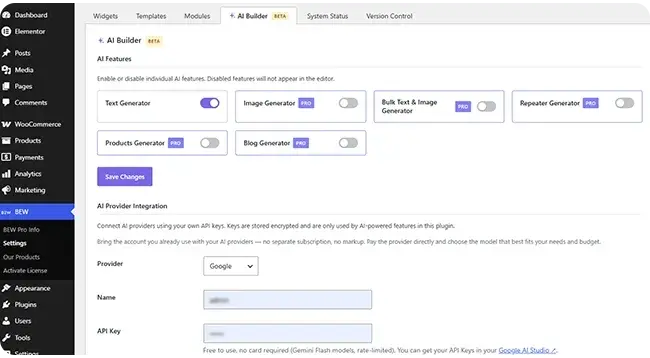
Learn more in How to use BEW AI Builder.
System Status #
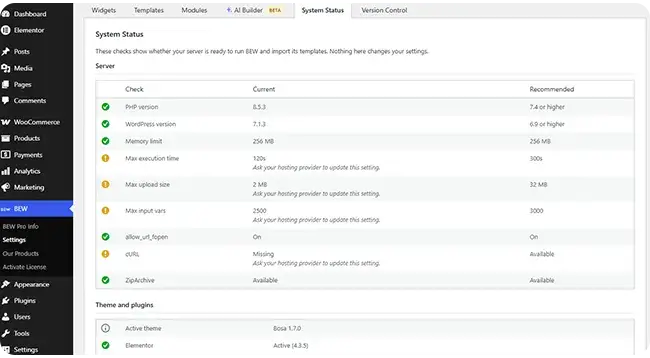
Shows details about your site environment, such as WordPress, PHP, and plugin versions. If you contact support, sharing this information helps us solve your issue faster.
Version Control #
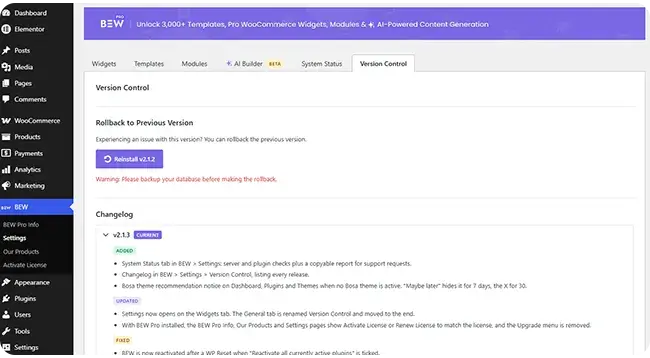
Contains the Rollback to Previous Version option. Use it only if an update causes a problem on your site.
Need Help? #
- Free users: Ask on the BEW support forum.
- BEW Pro users: Submit a ticket from your account dashboard.


