

This guide covers what actually happens when you insert a template — where it lands on your page, what’s carried over, and what to expect once it’s done.
Inserting a Template #
- Open the Template Library and find a Page or Section you want (Kit cards themselves aren’t inserted directly — see About Kits, Pages & Sections).
- Hover the card and click Insert — or open the preview first and click Insert from there.
- That’s it — for a template with no special requirements, it’s inserted immediately with no extra confirmation step.
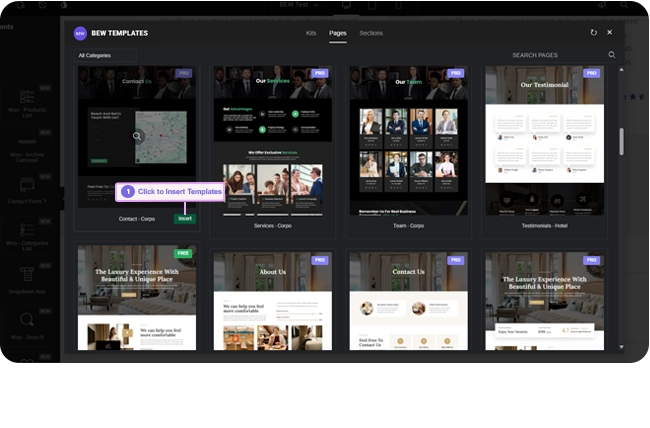
Where the Content Lands #
The template’s content is added to the end of the page you’re editing, after whatever sections are already there — it doesn’t replace or remove your existing content. Only the design itself comes across; the template’s own page-level settings aren’t applied to your page, and your site’s global Site Settings (colors, fonts, and so on) are left untouched.
Pro-Locked Templates #
If a template is marked Pro and BEW Pro isn’t active on your site, its Insert button is replaced with a Go Pro link instead, which opens the pricing page in a new tab. You can still preview a Pro template freely — only inserting it requires an active license.
After You Insert #
On success, the Template Library panel closes on its own and you’re back on your page with the new content in place. If something goes wrong — a connection hiccup, for instance — an error message appears and the panel stays open so you can try again.
Since inserting a template is just a normal Elementor editing action, you can undo it the same way you’d undo anything else — Ctrl+Z (or Cmd+Z on Mac), or Elementor’s own History panel.
Note: Aside from the Free/Pro badge, nothing on a card or in the preview tells you upfront whether a template needs a third-party plugin you don’t have installed — that only comes up once you click Insert. See Required Plugins When Inserting Templates for what happens next in that case.
Frequently Asked Questions #
#
No — the new content is added after your existing content, not in place of it.
#
Yes — it behaves like any other edit in Elementor, so Ctrl+Z (or Cmd+Z) or the History panel will remove it.
#
No — only the template’s own content is inserted. Your site’s global Site Settings are never modified by inserting a template.


