

Generate original images for any image field in your Elementor widgets using AI — right inside the editor, using your own AI provider API key.
What is the Image Generator? #
The Image Generator lets you create images for your Elementor designs without leaving the editor or sourcing stock photos. Describe what you need, generate it, and apply it directly to the widget’s image field.
Image Generator is a BEW Pro feature. It requires an active BEW Pro license, in addition to a connected AI provider.
Before You Start: Connect an AI Provider #
Image Generator uses your own API key with an AI provider of your choice — the same connection every other BEW AI generator uses.
- Go to BEW → Settings → AI Builder.
- Open the AI Providers section and connect a provider with your API key.
- Load that provider’s models and make sure at least one image-capable model is available.
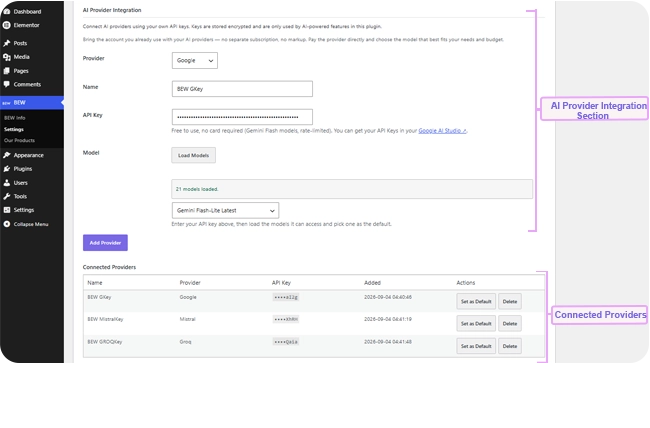
Note: Not every provider or model can generate images. Only image-capable models appear in the Model dropdown when you open Image Generator on an image field — if the list looks empty, try a different provider.
Where to Find It #
Open any page in the Elementor editor and select a widget with an image field — for example an Image widget, Icon Box, or Image Box. Next to the image control, you’ll see a small ✨ BEW AI button.

How to Generate an Image #
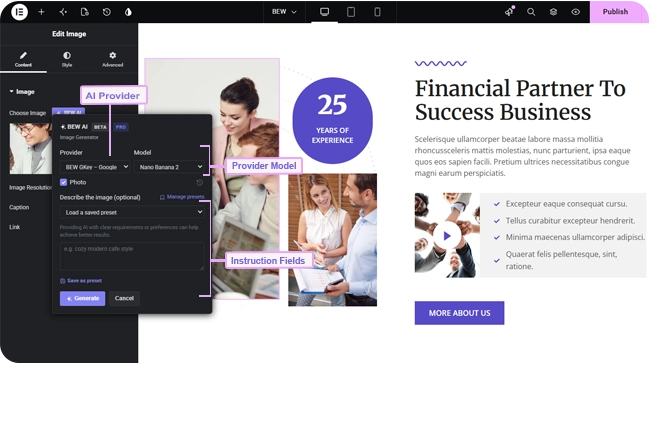
- Click the ✨ BEW AI button next to the image field you want to fill.
- Choose a Provider and an image-capable Model.
- Write an Instruction describing the image — subject, style, mood, and colors all help. Unlike text fields, this isn’t optional: the AI needs a description to generate from.
- Click Generate.
- Review the generated image in the preview.
- Click Apply to set it as the field’s image, Regenerate for a new attempt with the same instruction, or Cancel to discard it and keep the image that was there before.

Nothing changes on your page until you click Apply. Once applied, the image is added to your WordPress Media Library like any other image, so it behaves normally everywhere else — cropping, alt text, replacing it later, all work as usual.
Reusing Instructions with Presets #
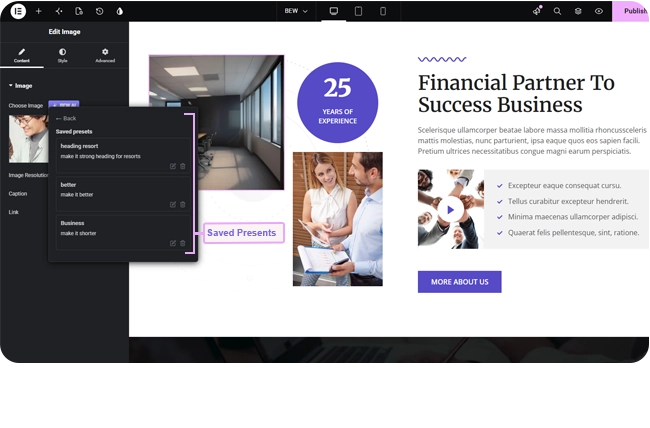
If you generate images with a consistent style — the same brand mood, color palette, or subject matter — save that description as a preset instead of retyping it:
- Type your instruction, then click Save as preset.
- Give it a short name and confirm.
Next time, open the Load a saved preset dropdown to apply it instantly, on any image field, on any page. Manage your saved presets — rename or delete them — from the Manage presets link above the instruction field.
Browsing Previous Generations #
Every image you generate is saved automatically per field, so a version you liked is never really gone. Click the history icon on the field to browse previous generations and restore any of them without generating again.

Tips for Better Results #
- Describe more than the subject — mention style (photo, illustration, flat design), mood, lighting, and color palette.
- If a result isn’t right, Regenerate rather than trying to fix it through small instruction tweaks — a fresh attempt often works better than patching.
- Different models have noticeably different styles. If one model’s results don’t fit your design, try another before giving up on the instruction itself.
Frequently Asked Questions #
#
Yes. Image Generator is a Pro feature. Text Generator is available on the free plugin, but generating images requires an active BEW Pro license.
#
Beyond your BEW Pro license, you pay your AI provider directly for image generations, at their normal rates, using your own API key. BEW AI doesn’t add a markup on top of that usage.
#
The connected provider likely doesn’t have an image-capable model available. Not all providers or models generate images — connect a provider that does, or check that the right model has been loaded for your existing connection.
#
Not inside the card — unlike text, there’s no way to touch up pixels there. You can Regenerate for a different result, or Apply it and then edit it normally through WordPress’s own image tools afterward.
#
Yes — use Elementor’s own Undo (Ctrl/Cmd+Z), or open the field’s History to restore an earlier image.


