

The Woo Categories List widget shows your WooCommerce product categories as a compact list — a small thumbnail, the category name, and its product count in a pill, instead of the larger image cards used by Woo Categories.
Adding the Widget #
- Open the page in the Elementor editor.
- Search the widget panel for Woo Categories List, under the BEW Elements category.
- Drag it into any section or column — a sidebar is a common spot.
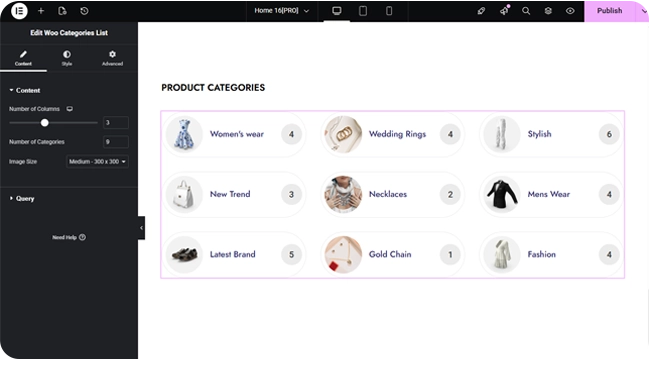
Layout #
- Number of Columns — a responsive slider up to 6.
- Number of Categories — how many to show at once (up to 100, defaults to 3).
- Image Size — which registered WordPress image size to use for each category’s thumbnail (defaults to Medium; the Image style section further caps the displayed size).
Choosing Which Categories Show #
Identical to Woo – Categories: a Source of Show All, Manual Selection, or By Parent, a Hide Empty switch (on by default), and Order By / Order controls.
Styling #
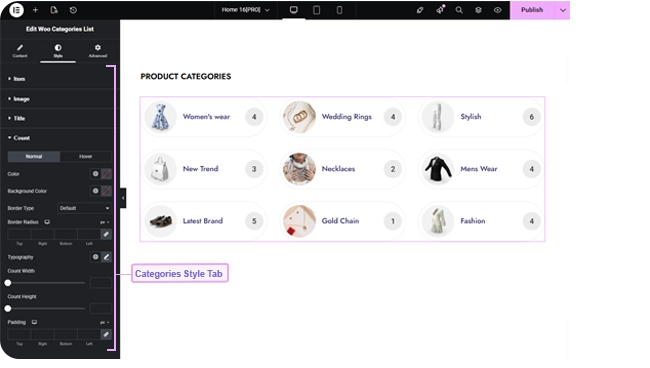
- Item — row background for Normal and Hover, hover border color, border, border radius, row and column gap, box shadow, and padding.
- Image — image size, border, hover border color, border radius.
- Title — color, hover color, typography, content alignment (defaults left), and margin.
- Count — the product-count pill: color, background, and border for Normal and Hover, typography, border radius, width, height, and padding.
Frequently Asked Questions #
#
Same query options and data, but a compact row layout with a small thumbnail and a product-count pill, instead of large image cards — better suited to a sidebar or narrow column.
#
Yes — set Source to By Parent and choose the parent category.
#
The thumbnail set on that category in WooCommerce (Products → Categories → edit category), or WooCommerce’s placeholder image if none is set.


