

The Site Preloader module shows a full-screen loading animation while a page finishes loading, then fades it out — a choice of 10 built-in animations, or your own custom image.
Where to Configure It #
Like Back to Top, this is a site-wide module configured in Elementor’s Site Settings, not a widget placed on individual pages.
- Open any page in the Elementor editor.
- Click the hamburger menu (☰) in the editor’s top-left corner, then choose Site Settings.
- Select the BEW Preloader tab.
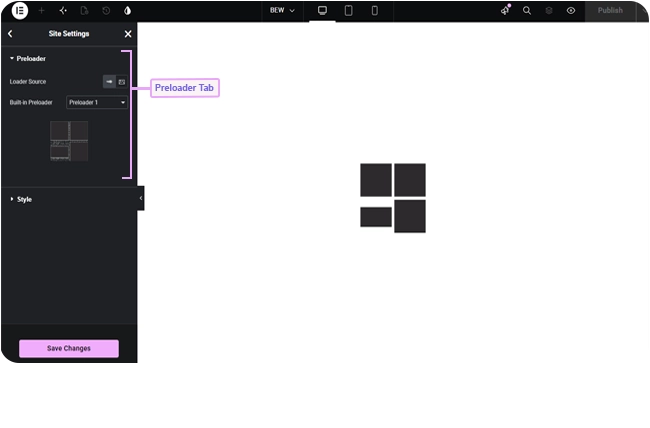
Note: There’s no on/off switch — the preloader shows on every page load once BEW is active and Elementor has a Site Settings kit. These settings control which animation shows and how it looks, not whether it appears.
Choosing the Loader #
Loader Source switches between two modes:
- Built-in Preloader (default) — pick from 10 ready-made animations, with a live thumbnail preview right in the settings panel.
- Custom Image — upload your own loading animation or logo, with a responsive Custom Image Size control.
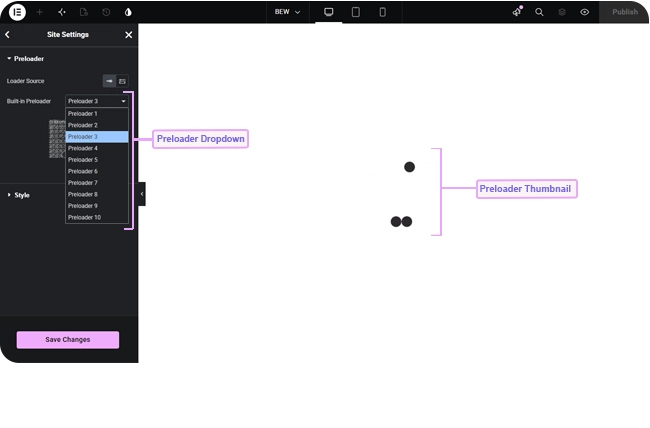
Note: If you switch Loader Source to Custom Image but don’t actually upload one, the preloader won’t show at all — it doesn’t fall back to a built-in animation.
Styling #
- Background Color — the full-screen overlay’s color (defaults to white).
- Loader Size — a responsive slider for the animation’s size (defaults to 42px; only shown for Built-in Preloader — custom images use their own Custom Image Size control instead).
- Z-index — defaults to 99999, kept very high so the overlay sits above everything else while it’s showing.
- Fade Out Duration (ms) — how long the fade-out transition takes once the page is ready (defaults to 400ms).
Frequently Asked Questions #
#
Yes — set Loader Source to Custom Image and upload your own file (a static image or an animated GIF both work).
#
Custom Image mode needs an image actually uploaded in the Custom Image field. Without one, nothing renders — it doesn’t fall back to a built-in animation.
#
There’s no dedicated switch for it. Setting Loader Source to Custom Image and leaving the image field empty is the closest equivalent, since the overlay then renders nothing.


