Skip to content
default-logo
  • Home
  • Templates
  • Widgets
  • Modules
  • AI Builder
  • Pricing
  • Support
Buy Now

Getting Started

3
  • How to Install & Update BEW
  • How to Install, Activate & Update BEW Pro
  • BEW Dashboard & Settings Overview

How to use BEW Template Library

5
  • Getting started with Template Library
  • About Kits, Pages & Sections
  • Template Library Modal Guide
  • How to Insert Templates
  • Required Plugins When Inserting Templates

How to use BEW Widgets

24
  • Getting started with Widgets
  • How to Setup BEW Site Logo
  • How to use Dropdown Nav
  • How to use Woo Cart
  • How to use Woo Search
  • How to use Woo My Account
  • How to use Woo YITH Wishlist
  • How to use Woo YITH Compare
  • How to use Blog Grid
  • How to use Contact Form 7
  • How to use Woo Categories
  • How to use Woo Products List
  • How to use Woo Categories List
  • How to use Woo Archive Carousel
  • How to use Woo Archive Products
  • How to use Image Carousel [ PRO ]
  • How to use Testimonial Slider [ PRO ]
  • How to use Woo Product Slider [ PRO ]
  • How to use Woo Product Accordion [ PRO ]
  • How to use Woo Product Tabs [ PRO ]
  • How to use Woo Grid Carousel [ PRO ]
  • How to use Woo Hot Deals [ PRO ]
  • How to use Woo Grid Products [ PRO ]
  • How to use Query Management

How to use BEW Site Modules

4
  • Getting started with Site Modules
  • How to use Back to Top
  • How to use Site Preloader
  • How to use Reading Progressbar [PRO]

How to use BEW AI Builder

11
  • Getting Started with BEW AI
  • AI Provider Integration
  • How to use Text Generator
  • How to use Image Generator
  • How to use Bulk Text & Image Generator
  • How to use Repeater Generator
  • How to use Products Generator
  • How to use Blog Generator
  • How to use Saved Presets
  • How to use Generation History
  • Troubleshooting AI Builder

Frequently Asked Questions (FAQs)

1
  • BEW Frequently Asked Questions
View Categories
  • Home
  • Docs
  • How to use BEW Site Modules
  • How to use Back to Top

How to use Back to Top

1 min read

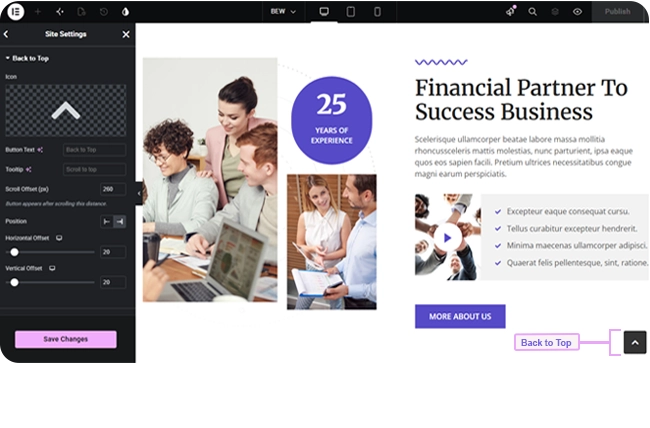
The Back to Top module adds a scroll-to-top button to every page on your site — no widget to place, just settings to configure. It appears automatically once a visitor scrolls down far enough.

Where to Configure It #

This isn’t an Elementor widget you drag onto a page — it’s a site-wide module configured in Elementor’s Site Settings.

  1. Open any page in the Elementor editor (or go to Templates → Kit in the WordPress admin sidebar).
  2. Click the hamburger menu (☰) in the editor’s top-left corner, then choose Site Settings.
  3. Select the BEW Back to Top tab.

Note: There’s no on/off switch — the button is always present once BEW is active and Elementor has a Site Settings kit, which is the normal state on any Elementor site. These settings control how it looks and behaves, not whether it appears.

Content Settings #

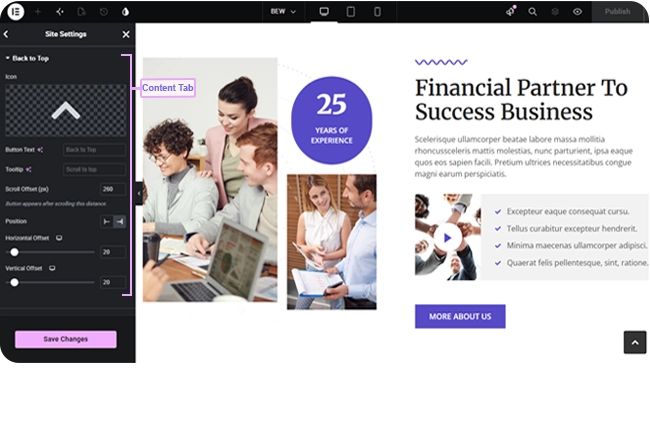
  • Icon — pick any icon from Elementor’s icon library (defaults to an upward arrow).
  • Button Text — optional label next to the icon; leave empty for an icon-only button (the default).
  • Tooltip — optional hover text and accessible label; falls back to “Scroll to top” if left empty.
  • Scroll Offset (px) — how far a visitor must scroll down before the button appears (defaults to 300px).
  • Position — Bottom Left or Bottom Right (defaults to Right), with responsive Horizontal Offset and Vertical Offset sliders (both default 20px) for exact placement.

Style Settings #

  • Icon Size, Button Width, Button Height, Padding, Border Radius — responsive sizing controls.
  • Typography — for the button text, shown only when Button Text isn’t empty.
  • Text Color and Background Color — separate Normal and Hover states.
  • Border and Box Shadow group controls.
  • Opacity — applied once the button is visible.
  • Entrance Animation — None, Fade In (default), Slide Up, or Float, for how the button appears when it first shows up.
  • Z-index — defaults to 999, in case another fixed element on your page needs to sit above or below it.
Frequently Asked Questions #

#

There’s no dedicated off switch. To effectively hide it, you could set Opacity to 0, though the button (and its click area) would still be present.

#

It’s a site-wide module, not a widget you place on a page — configure it once in Site Settings and it applies everywhere.

#

Icon only by default. Fill in Button Text if you’d rather show a label alongside (or instead of relying on) the icon.

Updated on September 3, 2026

What are your Feelings

  • Happy
  • Normal
  • Sad

Share This Article :

  • Facebook
  • X
  • LinkedIn
  • Pinterest
Getting started with Site ModulesHow to use Site Preloader
Table of Contents
  • Where to Configure It
  • Content Settings
  • Style Settings
  • Frequently Asked Questions
    • How do I turn this off?+
    • Why can't I find this in the widget panel?+
    • Does it show text or just an icon?+
bew-logo-white

Everything you need to build stores and websites with Elementor: widgets, modules, 2,500+ templates, and AI content generation — all in one plugin.

Company
  • Affiliate Program
  • Privacy Policy
  • Terms & Conditions
  • Blog & News
Support
  • Support Center
  • Documentation
  • My Account
  • Community Forum
Product
  • Features
  • Templates (3,000+ library)
  • AI Builder
  • Plans & Pricing

Copyright © 2026 BEW. Made with

  • by
  • Bosa Themes