

The Woo Cart widget adds a cart icon anywhere on your page — with a live item count, an optional subtotal, and an optional hover panel that shows what’s actually in the cart without leaving the page.
Adding the Widget #
- Open the page in the Elementor editor.
- Search the widget panel for Woo Cart, under the BEW Elements category.
- Drag it into any section or column — a header is the most common spot.
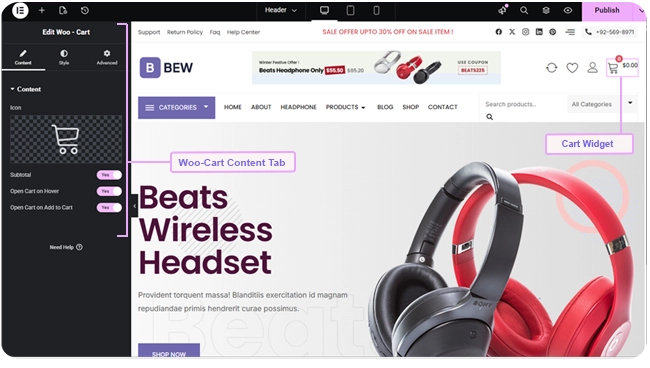
Note: This widget needs WooCommerce active. Without it, the widget shows an error notice in its place instead of the cart icon.
What the Cart Icon Shows #
- Icon — pick any icon from Elementor’s icon library (defaults to a cart icon). The icon links straight to your site’s real cart page.
- A small count badge always shows the number of items currently in the cart.
- Subtotal — switch on to show the cart’s running subtotal next to the icon; switch off to show the icon and count alone.
The Hover Cart Panel #
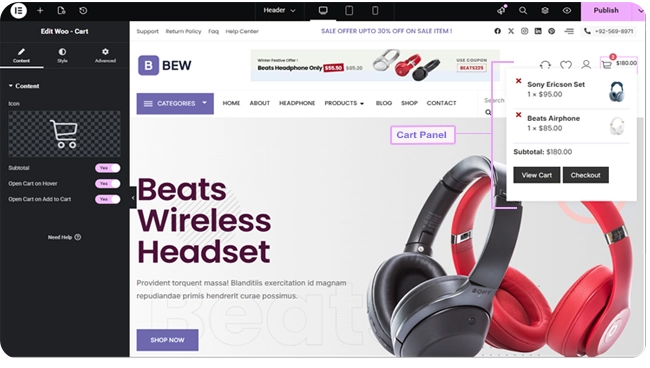
Turn on Open Cart on Hover in the Content tab to reveal a flyout panel when a visitor hovers the cart icon — the same cart contents, subtotal, and View Cart / Checkout buttons as WooCommerce’s own mini-cart, styled to match your page.
Note: Elementor’s editor doesn’t trigger a real hover state while you’re actively editing. Click Preview Changes (or view the page on the frontend) to see and confirm the styling of the hover panel and its buttons.
Auto-Open on Add to Cart #
Switch on Open Cart on Add to Cart so the cart panel opens by itself right after a visitor adds a product — a quick confirmation that the item was added, without them having to hover or click the icon themselves.
Styling #
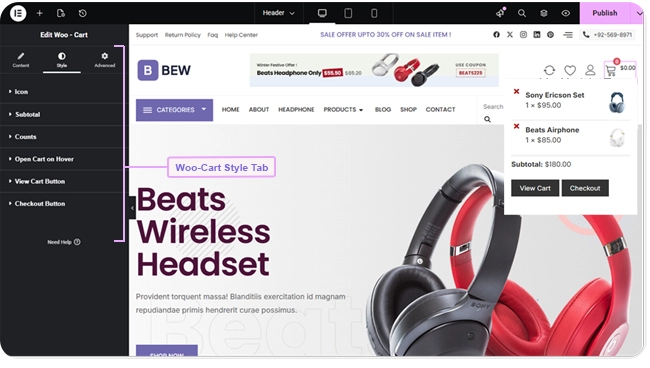
The Style tab has a section for each part of the widget:
- Icon — size, color and background for Normal and Hover states, plus border, border radius, margin, and padding.
- Subtotal — typography, text color, background, border, border radius, margin, and padding for the subtotal text (only shown when Subtotal is switched on).
- Counts — typography, text color, background, border, border radius, and padding for the item-count badge.
- Open Cart on Hover — title and price/quantity typography, plus title, background, cross (remove) icon, price, and divider colors for the flyout panel itself, with a border and box shadow.
- View Cart Button and Checkout Button — each styled independently, with typography, Normal/Hover text and background colors, border, border radius, margin, and padding. Both only appear when Open Cart on Hover is switched on.
Frequently Asked Questions #
#
Yes. Without WooCommerce active, the widget shows an error notice in its place instead of the cart icon.
#
Elementor’s editor doesn’t trigger real hover states while you’re actively editing the page. Click Preview Changes, or view the page on the frontend, to see the hover panel and confirm its styling.
#
Only if you’ve switched on Open Cart on Add to Cart in the Content tab. Leave it off and the panel only opens when a visitor hovers or clicks the icon.


