

The Woo Search widget adds a product search box to your page, with an optional category dropdown so visitors can narrow their search before they even submit it.
Adding the Widget #
- Open the page in the Elementor editor.
- Search the widget panel for Woo Search, under the BEW Elements category.
- Drag it into any section or column — a header is the most common spot.
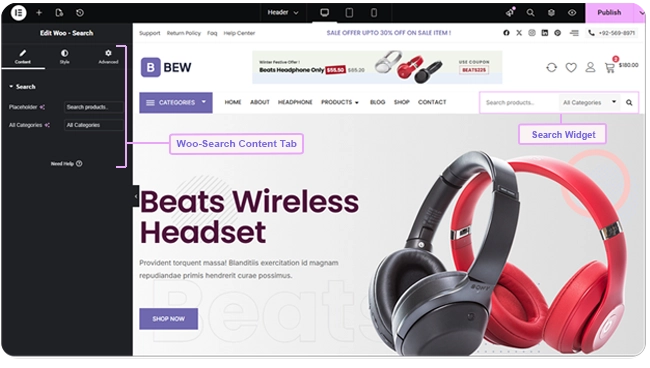
Search Field and Category Filter #
The Content tab has two text fields:
- Placeholder — the hint text shown inside the empty search field (defaults to “Search”).
- All Categories — the label shown for the dropdown’s default option, before a visitor picks a specific category.
The category dropdown itself isn’t something you configure — it’s built automatically from your site’s WooCommerce product categories, including empty ones, with the product count shown next to each name.
How Search Results Work #
Typing a keyword (and optionally picking a category) and submitting the form takes the visitor to your site’s normal search results, scoped to products — the same results WooCommerce’s own search would return, filtered further by category if one was selected. There’s no live-suggestions dropdown as you type; results only appear after the form is submitted.
Styling #
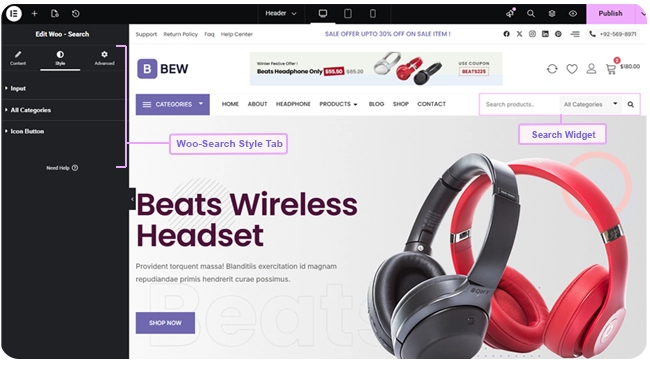
The Style tab has a section for each part of the widget:
- Input — typography, text/background/placeholder color in the Normal state, text/background/border color and a box shadow in the Focus state, plus border, border radius, width, and padding.
- All Categories — typography, text color, and background for the closed dropdown button (border, border radius, width, padding), and a separate Categories Dropdown group for the opened list — typography, Normal/Hover text and background colors, border, and border radius.
- Icon Button — the magnifying-glass submit button: icon size, Normal/Hover icon color and background, border, border radius, width, and padding.
Frequently Asked Questions #
#
They’re pulled automatically from all of your WooCommerce product categories, including ones with no products yet, each shown with its product count.
#
Yes. It searches WooCommerce products and filters by WooCommerce product categories, so without WooCommerce active the category dropdown stays empty and searches won’t return any product results.
#
No. It’s a standard search form — typing a keyword and submitting takes the visitor to the normal search results page, filtered to products.


