Skip to content
default-logo
  • Home
  • Templates
  • Widgets
  • Modules
  • AI Builder
  • Pricing
  • Support
Buy Now

Getting Started

3
  • How to Install & Update BEW
  • How to Install, Activate & Update BEW Pro
  • BEW Dashboard & Settings Overview

How to use BEW Template Library

5
  • Getting started with Template Library
  • About Kits, Pages & Sections
  • Template Library Modal Guide
  • How to Insert Templates
  • Required Plugins When Inserting Templates

How to use BEW Widgets

24
  • Getting started with Widgets
  • How to Setup BEW Site Logo
  • How to use Dropdown Nav
  • How to use Woo Cart
  • How to use Woo Search
  • How to use Woo My Account
  • How to use Woo YITH Wishlist
  • How to use Woo YITH Compare
  • How to use Blog Grid
  • How to use Contact Form 7
  • How to use Woo Categories
  • How to use Woo Products List
  • How to use Woo Categories List
  • How to use Woo Archive Carousel
  • How to use Woo Archive Products
  • How to use Image Carousel [ PRO ]
  • How to use Testimonial Slider [ PRO ]
  • How to use Woo Product Slider [ PRO ]
  • How to use Woo Product Accordion [ PRO ]
  • How to use Woo Product Tabs [ PRO ]
  • How to use Woo Grid Carousel [ PRO ]
  • How to use Woo Hot Deals [ PRO ]
  • How to use Woo Grid Products [ PRO ]
  • How to use Query Management

How to use BEW Site Modules

4
  • Getting started with Site Modules
  • How to use Back to Top
  • How to use Site Preloader
  • How to use Reading Progressbar [PRO]

How to use BEW AI Builder

11
  • Getting Started with BEW AI
  • AI Provider Integration
  • How to use Text Generator
  • How to use Image Generator
  • How to use Bulk Text & Image Generator
  • How to use Repeater Generator
  • How to use Products Generator
  • How to use Blog Generator
  • How to use Saved Presets
  • How to use Generation History
  • Troubleshooting AI Builder

Frequently Asked Questions (FAQs)

1
  • BEW Frequently Asked Questions
View Categories
  • Home
  • Docs
  • How to use BEW Site Modules
  • How to use Site Preloader

How to use Site Preloader

2 min read

The Site Preloader module shows a full-screen loading animation while a page finishes loading, then fades it out — a choice of 10 built-in animations, or your own custom image.

Where to Configure It #

Like Back to Top, this is a site-wide module configured in Elementor’s Site Settings, not a widget placed on individual pages.

  1. Open any page in the Elementor editor.
  2. Click the hamburger menu (☰) in the editor’s top-left corner, then choose Site Settings.
  3. Select the BEW Preloader tab.

Note: There’s no on/off switch — the preloader shows on every page load once BEW is active and Elementor has a Site Settings kit. These settings control which animation shows and how it looks, not whether it appears.

Choosing the Loader #

Loader Source switches between two modes:

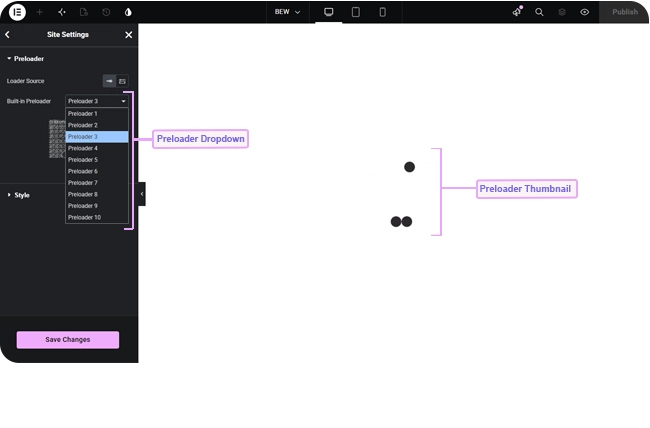
  • Built-in Preloader (default) — pick from 10 ready-made animations, with a live thumbnail preview right in the settings panel.
  • Custom Image — upload your own loading animation or logo, with a responsive Custom Image Size control.
Note: If you switch Loader Source to Custom Image but don’t actually upload one, the preloader won’t show at all — it doesn’t fall back to a built-in animation.

Styling #

  • Background Color — the full-screen overlay’s color (defaults to white).
  • Loader Size — a responsive slider for the animation’s size (defaults to 42px; only shown for Built-in Preloader — custom images use their own Custom Image Size control instead).
  • Z-index — defaults to 99999, kept very high so the overlay sits above everything else while it’s showing.
  • Fade Out Duration (ms) — how long the fade-out transition takes once the page is ready (defaults to 400ms).

Frequently Asked Questions #

#

Yes — set Loader Source to Custom Image and upload your own file (a static image or an animated GIF both work).

#

Custom Image mode needs an image actually uploaded in the Custom Image field. Without one, nothing renders — it doesn’t fall back to a built-in animation.

#

There’s no dedicated switch for it. Setting Loader Source to Custom Image and leaving the image field empty is the closest equivalent, since the overlay then renders nothing.

Updated on September 3, 2026

What are your Feelings

  • Happy
  • Normal
  • Sad

Share This Article :

  • Facebook
  • X
  • LinkedIn
  • Pinterest
How to use Back to TopHow to use Reading Progressbar [PRO]
Table of Contents
  • Where to Configure It
  • Choosing the Loader
  • Styling
  • Frequently Asked Questions
    • Can I use my own logo or animation instead of the built-in ones?+
    • Why did my preloader disappear after I switched to Custom Image?+
    • Can I turn the preloader off entirely?+
bew-logo-white

Everything you need to build stores and websites with Elementor: widgets, modules, 2,500+ templates, and AI content generation — all in one plugin.

Company
  • Affiliate Program
  • Privacy Policy
  • Terms & Conditions
  • Blog & News
Support
  • Support Center
  • Documentation
  • My Account
  • Community Forum
Product
  • Features
  • Templates (3,000+ library)
  • AI Builder
  • Plans & Pricing

Copyright © 2026 BEW. Made with

  • by
  • Bosa Themes