Skip to content
default-logo
  • Home
  • Templates
  • Widgets
  • Modules
  • AI Builder
  • Pricing
  • Support
Buy Now

Getting Started

3
  • How to Install & Update BEW
  • How to Install, Activate & Update BEW Pro
  • BEW Dashboard & Settings Overview

How to use BEW Template Library

5
  • Getting started with Template Library
  • About Kits, Pages & Sections
  • Template Library Modal Guide
  • How to Insert Templates
  • Required Plugins When Inserting Templates

How to use BEW Widgets

24
  • Getting started with Widgets
  • How to Setup BEW Site Logo
  • How to use Dropdown Nav
  • How to use Woo Cart
  • How to use Woo Search
  • How to use Woo My Account
  • How to use Woo YITH Wishlist
  • How to use Woo YITH Compare
  • How to use Blog Grid
  • How to use Contact Form 7
  • How to use Woo Categories
  • How to use Woo Products List
  • How to use Woo Categories List
  • How to use Woo Archive Carousel
  • How to use Woo Archive Products
  • How to use Image Carousel [ PRO ]
  • How to use Testimonial Slider [ PRO ]
  • How to use Woo Product Slider [ PRO ]
  • How to use Woo Product Accordion [ PRO ]
  • How to use Woo Product Tabs [ PRO ]
  • How to use Woo Grid Carousel [ PRO ]
  • How to use Woo Hot Deals [ PRO ]
  • How to use Woo Grid Products [ PRO ]
  • How to use Query Management

How to use BEW Site Modules

4
  • Getting started with Site Modules
  • How to use Back to Top
  • How to use Site Preloader
  • How to use Reading Progressbar [PRO]

How to use BEW AI Builder

11
  • Getting Started with BEW AI
  • AI Provider Integration
  • How to use Text Generator
  • How to use Image Generator
  • How to use Bulk Text & Image Generator
  • How to use Repeater Generator
  • How to use Products Generator
  • How to use Blog Generator
  • How to use Saved Presets
  • How to use Generation History
  • Troubleshooting AI Builder

Frequently Asked Questions (FAQs)

1
  • BEW Frequently Asked Questions
View Categories
  • Home
  • Docs
  • How to use BEW Widgets
  • How to use Woo Products List

How to use Woo Products List

1 min read

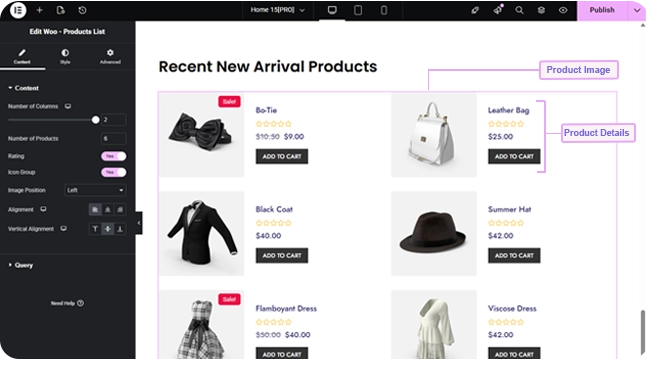
The Woo Products List widget shows WooCommerce products as a stacked list rather than a grid — the same product data as Woo Archive Products, laid out with the image beside the details instead of above them.

Adding the Widget #

  1. Open the page in the Elementor editor.
  2. Search the widget panel for Woo Products List, under the BEW Elements category.
  3. Drag it into any section or column.

List Layout #

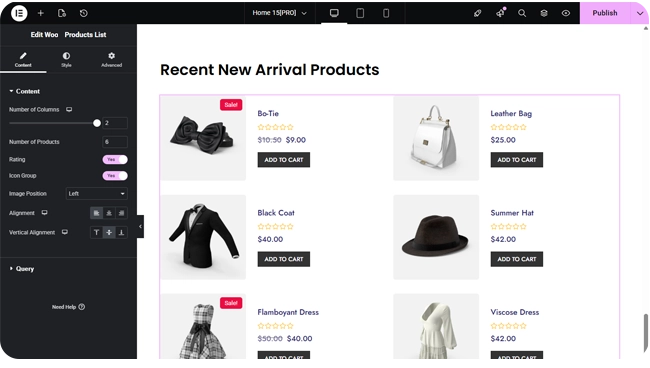
  • Number of Columns — a responsive slider up to 2, defaulting to a single column on every device — this widget is a list first, and only becomes a 2-column layout if you raise it.
  • Number of Products — how many products to show (up to 200; defaults to 4). There’s no pagination on this widget — it’s a fixed-length list.
  • Rating and Icon Group — on by default; switches to hide the star rating or the compare/wishlist icon overlay.
  • Image Position — Left (default) or Right, placing the product image on either side of the title/price/button block.
  • Alignment and Vertical Alignment — responsive controls for how the text block aligns horizontally (defaults left) and vertically (defaults center) next to the image.
Choosing Which Products Show #

The Query section works identically to Woo – Archive Products: a Source of All Products, Custom Query (category/tag Match or Exclude rules, with an Offset), or Manual Selection, plus Exclude Products, Exclude Current Product, and an Advanced group for Filter By (None / Featured / Sale), Order By, and Order.

Styling #

The Style tab mirrors Woo Archive Products, with a section for each part of the list:

  • Item — row background, border, border radius, box shadow, column/row gap, and padding.
  • Image — opacity and CSS filters for Normal and Hover, hover transition duration, border, border radius, margin, and padding.
  • Title — color, hover color, typography, and margin.
  • Price — color, hover color, and typography for the current price, plus separate color and typography for the struck-through original price on sale items.
  • Rating — star color, filled-star color, star spacing and size, margin.
  • Button — typography, Normal/Hover text and background colors, border, border radius, margin, and padding.
  • Sale — typography, colors, border, border radius, margin, and padding for the “Sale!” badge.
  • Icon Group — background and icon color for the compare/wishlist overlay icons.

Frequently Asked Questions #

#

Same product data and query options, different layout: this widget defaults to a single-column stacked list with the image beside the details, has a lower column cap (2 instead of 6), and doesn’t include pagination.

#

Yes, raise Number of Products up to 200. Since this widget has no pagination, everything you set loads at once — for a long list, Woo – Archive Products with Pagination switched on is usually a better fit.

#

Yes — set Image Position to Right in the Content tab.

Updated on September 2, 2026

What are your Feelings

  • Happy
  • Normal
  • Sad

Share This Article :

  • Facebook
  • X
  • LinkedIn
  • Pinterest
How to use Woo CategoriesHow to use Woo Categories List
Table of Contents
  • Adding the Widget
  • List Layout
  • Choosing Which Products Show
  • Styling
  • Frequently Asked Questions
    • How is this different from Woo - Archive Products?+
    • Can I show more than a handful of products?+
    • Can I put the image on the right instead of the left?+
bew-logo-white

Everything you need to build stores and websites with Elementor: widgets, modules, 2,500+ templates, and AI content generation — all in one plugin.

Company
  • Affiliate Program
  • Privacy Policy
  • Terms & Conditions
  • Blog & News
Support
  • Support Center
  • Documentation
  • My Account
  • Community Forum
Product
  • Features
  • Templates (3,000+ library)
  • AI Builder
  • Plans & Pricing

Copyright © 2026 BEW. Made with

  • by
  • Bosa Themes