Skip to content
default-logo
  • Home
  • Templates
  • Widgets
  • Modules
  • AI Builder
  • Pricing
  • Support
Buy Now

Getting Started

3
  • How to Install & Update BEW
  • How to Install, Activate & Update BEW Pro
  • BEW Dashboard & Settings Overview

How to use BEW Template Library

5
  • Getting started with Template Library
  • About Kits, Pages & Sections
  • Template Library Modal Guide
  • How to Insert Templates
  • Required Plugins When Inserting Templates

How to use BEW Widgets

24
  • Getting started with Widgets
  • How to Setup BEW Site Logo
  • How to use Dropdown Nav
  • How to use Woo Cart
  • How to use Woo Search
  • How to use Woo My Account
  • How to use Woo YITH Wishlist
  • How to use Woo YITH Compare
  • How to use Blog Grid
  • How to use Contact Form 7
  • How to use Woo Categories
  • How to use Woo Products List
  • How to use Woo Categories List
  • How to use Woo Archive Carousel
  • How to use Woo Archive Products
  • How to use Image Carousel [ PRO ]
  • How to use Testimonial Slider [ PRO ]
  • How to use Woo Product Slider [ PRO ]
  • How to use Woo Product Accordion [ PRO ]
  • How to use Woo Product Tabs [ PRO ]
  • How to use Woo Grid Carousel [ PRO ]
  • How to use Woo Hot Deals [ PRO ]
  • How to use Woo Grid Products [ PRO ]
  • How to use Query Management

How to use BEW Site Modules

4
  • Getting started with Site Modules
  • How to use Back to Top
  • How to use Site Preloader
  • How to use Reading Progressbar [PRO]

How to use BEW AI Builder

11
  • Getting Started with BEW AI
  • AI Provider Integration
  • How to use Text Generator
  • How to use Image Generator
  • How to use Bulk Text & Image Generator
  • How to use Repeater Generator
  • How to use Products Generator
  • How to use Blog Generator
  • How to use Saved Presets
  • How to use Generation History
  • Troubleshooting AI Builder

Frequently Asked Questions (FAQs)

1
  • BEW Frequently Asked Questions
View Categories
  • Home
  • Docs
  • How to use BEW Template Library
  • How to Insert Templates

How to Insert Templates

1 min read

This guide covers what actually happens when you insert a template — where it lands on your page, what’s carried over, and what to expect once it’s done.

Inserting a Template #

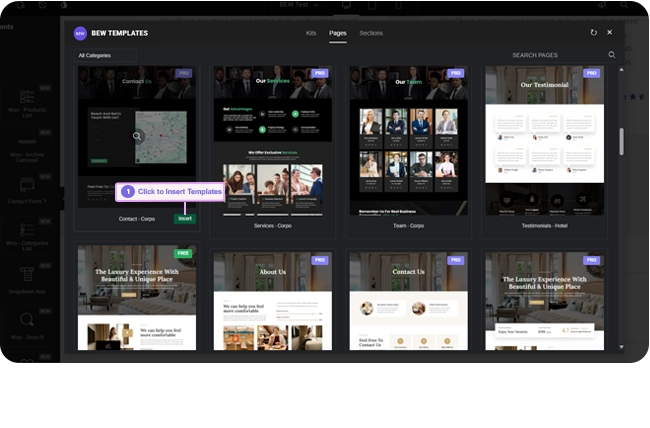
  1. Open the Template Library and find a Page or Section you want (Kit cards themselves aren’t inserted directly — see About Kits, Pages & Sections).
  2. Hover the card and click Insert — or open the preview first and click Insert from there.
  3. That’s it — for a template with no special requirements, it’s inserted immediately with no extra confirmation step.
Where the Content Lands #

The template’s content is added to the end of the page you’re editing, after whatever sections are already there — it doesn’t replace or remove your existing content. Only the design itself comes across; the template’s own page-level settings aren’t applied to your page, and your site’s global Site Settings (colors, fonts, and so on) are left untouched.

Pro-Locked Templates #

If a template is marked Pro and BEW Pro isn’t active on your site, its Insert button is replaced with a Go Pro link instead, which opens the pricing page in a new tab. You can still preview a Pro template freely — only inserting it requires an active license.

After You Insert #

On success, the Template Library panel closes on its own and you’re back on your page with the new content in place. If something goes wrong — a connection hiccup, for instance — an error message appears and the panel stays open so you can try again.

Since inserting a template is just a normal Elementor editing action, you can undo it the same way you’d undo anything else — Ctrl+Z (or Cmd+Z on Mac), or Elementor’s own History panel.

Note: Aside from the Free/Pro badge, nothing on a card or in the preview tells you upfront whether a template needs a third-party plugin you don’t have installed — that only comes up once you click Insert. See Required Plugins When Inserting Templates for what happens next in that case.

Frequently Asked Questions #

#

No — the new content is added after your existing content, not in place of it.

#

Yes — it behaves like any other edit in Elementor, so Ctrl+Z (or Cmd+Z) or the History panel will remove it.

#

No — only the template’s own content is inserted. Your site’s global Site Settings are never modified by inserting a template.

Updated on September 11, 2026

What are your Feelings

  • Happy
  • Normal
  • Sad

Share This Article :

  • Facebook
  • X
  • LinkedIn
  • Pinterest
Template Library Modal GuideRequired Plugins When Inserting Templates
Table of Contents
  • Inserting a Template
  • Where the Content Lands
  • Pro-Locked Templates
  • After You Insert
  • Frequently Asked Questions
    • Will inserting a template delete what's already on my page?+
    • Can I undo an insert if I change my mind?+
    • Does inserting a template change my site's colors or fonts?+
bew-logo-white

Everything you need to build stores and websites with Elementor: widgets, modules, 2,500+ templates, and AI content generation — all in one plugin.

Company
  • Affiliate Program
  • Privacy Policy
  • Terms & Conditions
  • Blog & News
Support
  • Support Center
  • Documentation
  • My Account
  • Community Forum
Product
  • Features
  • Templates (3,000+ library)
  • AI Builder
  • Plans & Pricing

Copyright © 2026 BEW. Made with

  • by
  • Bosa Themes