

The Blog widget displays posts — or any public content type on your site — as a grid, with a featured image, title, meta info, excerpt, and a Read More button. It works without WooCommerce installed.
Adding the Widget #
- Open the page in the Elementor editor.
- Search the widget panel for Blog, under the BEW Elements category.
- Drag it into any section or column.
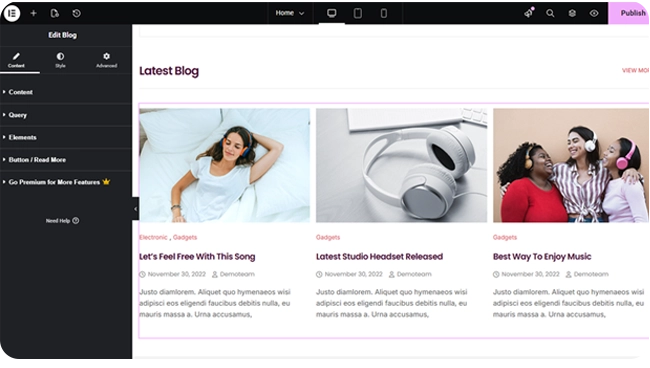
Grid Layout #
- Number of Posts — how many load per page (up to 100, defaults to 10).
- Grid Columns — a responsive slider up to 6, defaulting to 3 on desktop and tablet, 1 on mobile.
- Grid Style — Fit Rows (default) or Masonry.
- Equal Heights — off by default; forces every card to match the tallest one in its row. Only applies in Fit Rows — Masonry ignores it, since masonry layouts are uneven by design.
- Alignment — responsive alignment for the Read More button.
- Pagination — on by default, with a Left/Center/Right position control for the page numbers.
Choosing What to Display #
The Query section’s Post Type control isn’t limited to blog posts — it lists every public content type registered on your site, so you could just as easily use this widget to display Products, Pages, or a custom post type from another plugin. Order and Order By control the sequence.
For Post or Product post types, Include Categories and Exclude Categories let you filter by category slug (comma-separated). For any other post type, these filters aren’t available, since only Posts and Products have a matching category taxonomy built in.
Note: When Post Type is set to Products, this widget automatically respects each product’s WooCommerce catalog visibility, the same as the dedicated Woo product widgets.
What Shows on Each Card #
The Elements section lets you toggle each piece of a card on or off — Display Title, Display Date, Display Comments, Display Author, and Display Categories are all on by default. A post without a featured image simply skips the image block rather than showing a placeholder.
- Image Size — which registered WordPress image size to use (defaults to Medium Large).
- Categories Separator — the text between category links when Display Categories is on (defaults to a comma).
- Display Excerpt and Excerpt Length — on by default, trimmed to 15 words.
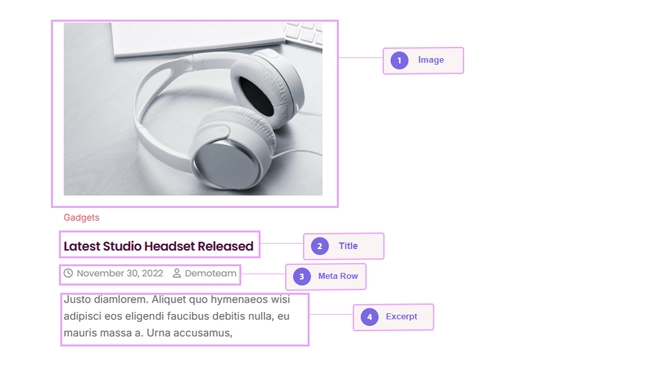
Note: The comment count only appears when Display Comments is on and comments are actually open on that post — it won’t show a “0 Comments” link on posts where commenting is disabled.
Read More Button #
Switch on Enable Button (on by default) to reveal a full set of standard Elementor button controls — text, icon, icon position, size, and hover animation. The button always links to that card’s own post, and isn’t configurable to link anywhere else.
Styling #
- Grid Item — card background, border, border radius, box shadow, column/row gap, and padding, with separate Normal and Hover states.
- Image — opacity and CSS filters for Normal and Hover, hover transition duration, border, border radius, margin, and padding.
- Title — color, hover color, typography, margin.
- Categories — typography, color, hover color, margin, padding.
- Excerpt — color, typography, margin.
- Meta — color, hover color, typography, icon size, icon spacing, item spacing, margin, padding — covers the date, comments, and author row together.
- Button / Read More — full button styling (only shown when Enable Button is on).
- Pagination — typography, Normal/Hover/Current colors, item size, spacing, border, border radius, margin.
Frequently Asked Questions #
#
Yes — set Post Type to Products in the Query section. It’ll respect WooCommerce catalog visibility automatically, and you can still filter by product category.
#
Include Categories and Exclude Categories only apply to Posts and Products, since those are the post types with a built-in category taxonomy. Other post types won’t show these fields.
#
It only shows when comments are open on that specific post. If commenting has been disabled for it, the count is skipped even with Display Comments switched on.


