

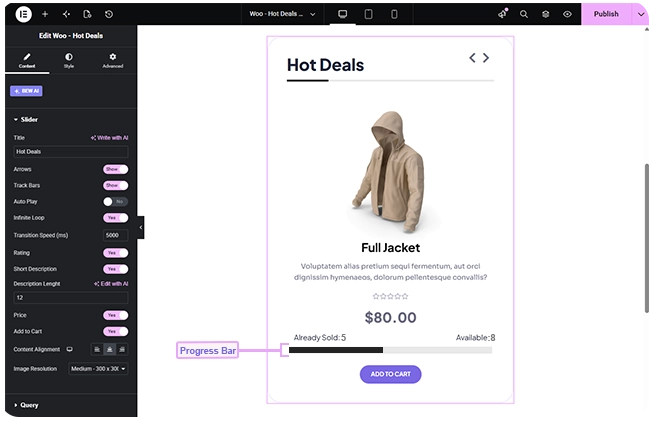
The Woo Hot Deals widget showcases products in a carousel with a stock/sales progress bar under each one — showing how many have already sold and how many remain, to create urgency around a deal.
Note: This widget requires an active BEW Pro license.
Adding the Widget #
- Open the page in the Elementor editor.
- Search the widget panel for Woo Hot Deals, under the BEW Elements category.
- Drag it into any section or column.
The Stock Progress Bar #
Below each product’s price, the widget shows how many units have already sold, and either how many remain (for products with stock quantity tracked in WooCommerce) or simply “Available” (for products that don’t track quantity) — plus a visual progress bar filled in proportion to how much has sold. If a product is out of stock or on backorder, this is replaced with an “Out of Stock” label instead.
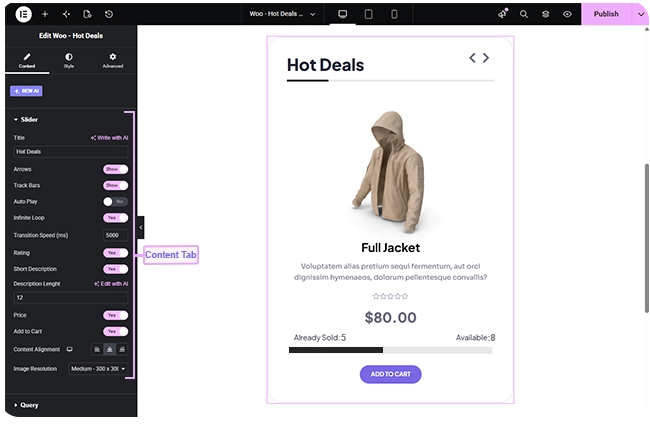
What Shows on Each Slide #
- Title — the text shown above the carousel (defaults to “Hot Deals”).
- Rating, Price, Add to Cart — on by default; switches to hide any of them.
- Short Description — off by default. When on, it’s pulled from the product’s excerpt field, trimmed to the word count set in Description Length (defaults to 15).
- Content Alignment — Left/Center/Right (defaults Center).
- Image Size — defaults to Medium.
Note: Like Woo Product Slider, each slide shows a single product — there’s no “products to display” setting.
Slider Controls #
Arrows and Track Bars (this widget’s equivalent of slider dots) are both on by default. Auto Play and Infinite Loop are off by default. Transition Speed sets how many milliseconds each transition takes (defaults to 2000).
Choosing Which Products Show #
The Query section’s Source control has three modes:
- All Products — your full catalog, respecting each product’s WooCommerce catalog visibility.
- Custom Query — filter by category and/or tag, each with its own Match or Exclude rule, plus an Offset to skip a number of results.
- Manual Selection — pick specific products by name.
Regardless of source, you can also set Exclude Products, Exclude Current Product, Number of Products (up to 200, defaults to 5), and an Advanced group for Filter By (None / Featured / Sale), Order By, and Order. Setting Filter By to Sale is a natural fit for a deals carousel.
Styling #
- Item — background color, plus a background overlay color and opacity, border, border radius, margin, padding.
- Heading — color, typography, margin, padding for the “Hot Deals” title.
- Arrows — icon color and background for Normal/Hover, border, border radius, icon size, separate left/right gap and vertical position, padding.
- Track Bars — color, active color, hover color, size, spacing, border radius, margin.
- Image, Title, Short Description, Rating, Price, Button, Sale — the same set of card-content style sections used across the other product widgets.
- Stock Info — color and typography for the sold/available text, plus a Progress Bar group: background color, fill color, height, border, border radius.
Frequently Asked Questions #
#
From that product’s real WooCommerce sales and stock numbers — total units sold against total sold plus remaining stock. It only fills in for products that manage stock quantity in WooCommerce.
#
The progress bar and sold/available text are replaced with an “Out of Stock” label.
#
Yes — set Filter By to Sale in the Query section’s Advanced group.


