

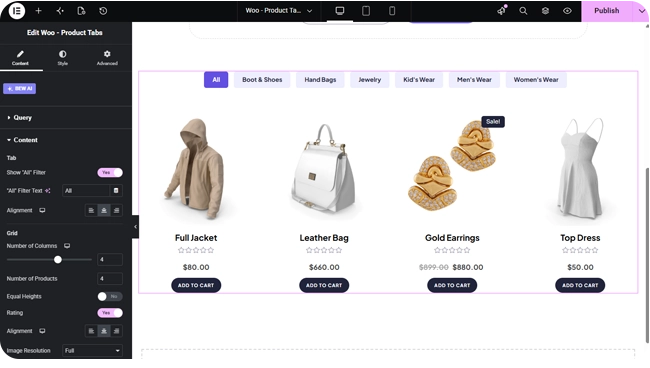
The Woo Product Tabs widget shows a product grid with clickable category tabs above it — visitors can filter which products are shown by category without the page reloading.
Note: This widget requires an active BEW Pro license.
Adding the Widget #
- Open the page in the Elementor editor.
- Search the widget panel for Woo Product Tabs, under the BEW Elements category.
- Drag it into any section or column.
How the Tabs Work #
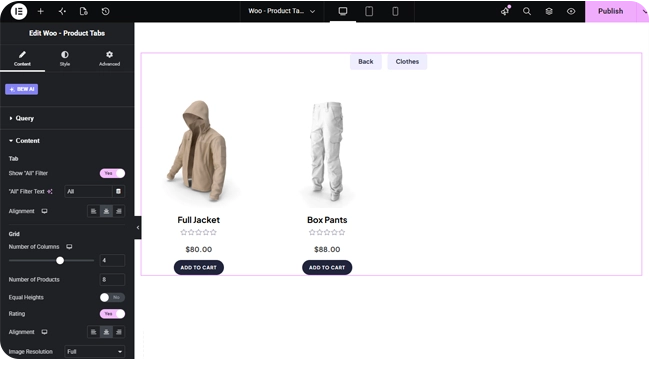
All the matching products load once, then clicking a tab filters which ones are visible — there’s no page reload or re-query per click. A tab is created for each category among the queried products. If a category has subcategories, clicking its tab reveals a Back tab plus a tab for each subcategory, letting visitors drill in one level.
- Show “All” Filter — on by default; adds an “All” tab before the category tabs. “All” Filter Text sets its label (defaults to “All”), shown only when this is on.
- Alignment — responsive Left/Center/Right for the tab bar (defaults Center).
Grid Layout #
- Number of Columns — a responsive slider up to 6.
- Number of Products — how many load into the grid (up to 200, defaults to 9). Since all products load at once and are filtered client-side by tab, this is the total across every tab combined, not per tab.
- Equal Heights — off by default; forces every card to match the tallest one in its row.
- Rating — on by default; switch to hide star ratings.
- Alignment — responsive Left/Center/Right text alignment within each card (defaults Center).
- Image Size — defaults to the WooCommerce thumbnail size.
Choosing Which Products Load #
The Query section’s Source control has three modes — Custom Query is the default here, since the category tabs are built from whichever categories match your query:
- All Products — your full catalog, with a tab for every product category on your site.
- Custom Query — filter by category and/or tag, each with its own Match or Exclude rule, plus an Offset to skip a number of results. Tabs are built from the categories this filter resolves to.
- Manual Selection — pick specific products by name; tabs are still built from the Select Categories filter.
You can also set Exclude Products, Exclude Current Product, and an Advanced group for Filter By (None / Featured / Sale), Order By, and Order.
Styling #
- Tabs Wrapper — grid gap, background, border, border radius, padding for the tab bar as a whole.
- Tabs Item — typography, transition duration, and separate Normal/Hover/Active colors (text, background, box shadow, border) for each tab.
- Grid Item, Image, Title, Price, Rating, Button, Sale — the same set of product-card style sections used across the other product widgets (colors, typography, borders, spacing for each).
Frequently Asked Questions #
#
No. Every matching product loads once when the page loads; clicking a tab just shows or hides products already on the page.
#
Overall — it’s the total number of products loaded into the widget across all categories combined, since the tabs just filter what’s already loaded rather than running a new query.
#
Clicking that category’s tab swaps the tab bar to show a Back tab and one tab per subcategory, so visitors can drill into a specific subcategory and go back again.


