

Generate every eligible text and image field on a widget in one pass, instead of opening each field one at a time.
What is the Bulk Text & Image Generator? #
Text Generator and Image Generator each work on a single field. Bulk Generator looks at the widget you’ve selected as a whole, finds every field on it that AI can write to — text and image both — and lets you generate content for a chosen subset of them from one instruction, in one request.
Bulk Text & Image Generator is a BEW Pro feature.
Before You Start: Connect an AI Provider #
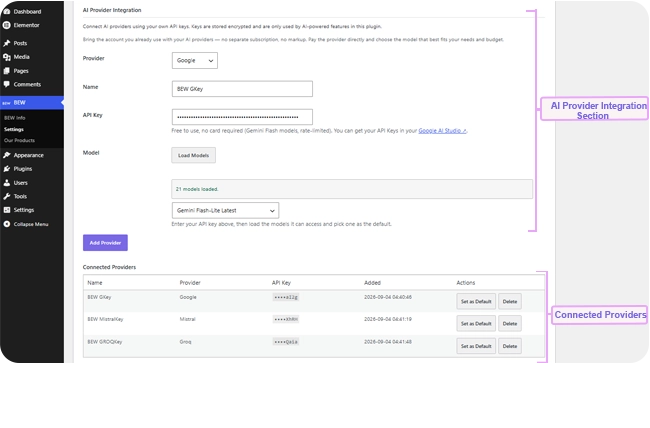
- Go to BEW → Settings → AI Builder.
- Open the AI Providers section and connect a provider with your API key.
- If you plan to generate images as well as text in the same run, make sure an image-capable model is available too.
Where to Find It #
Select a widget that has more than one AI-eligible field. Unlike Text and Image Generator’s per-field button, Bulk Generator shows a single ✨ BEW AI button for the whole widget rather than one per field.

How to Generate in Bulk #
- Click the widget’s ✨ BEW AI button.
- The card lists every eligible field on the widget as its own row, each with a checkbox, plus a Select all option at the top. Uncheck anything you don’t want touched.

- Choose a Provider and Model.
- Write one Instruction — it’s applied to every field you’ve checked, text and image alike, each interpreted appropriately for its own field type.
- Click Generate.
- Review each field’s result in the preview, then click Apply to write all of them at once, or Cancel to discard the whole batch.
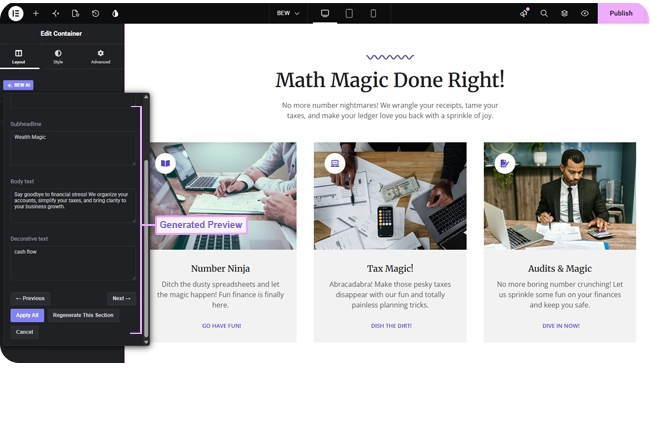
Nothing changes on your page until you click Apply.
Reusing Instructions with Presets #
Save an instruction you reuse across widgets as a preset:
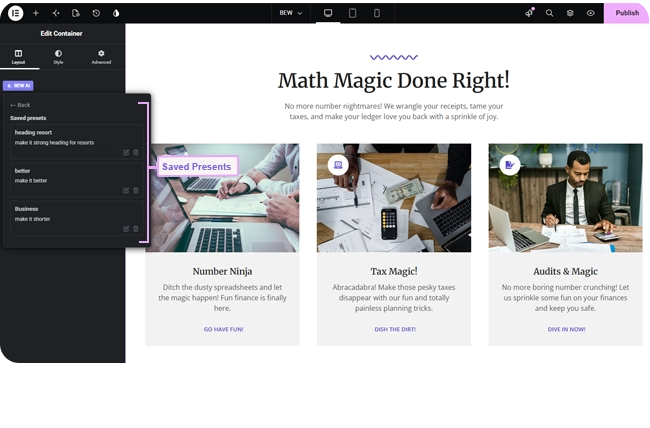
- Type your instruction, then click Save as preset.
- Give it a short name and confirm.
Next time, open the Load a saved preset dropdown to apply it instantly. Manage your saved presets — rename or delete them — from the Manage presets link above the instruction field.
Browsing Previous Generations #
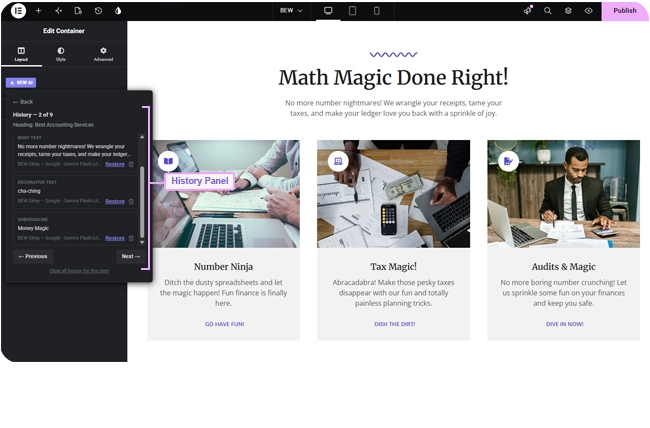
History is tracked per field, the same as every other generator — even after a bulk run, you can open any individual field’s history icon to browse its past generations and restore an earlier one without regenerating the whole batch.
Tips for Better Results #
- Bulk works best on fields that should share one voice — a heading and its supporting text, for example — since they all get generated from the same instruction.
- Uncheck fields you don’t actually want changed rather than leaving everything selected by default — it keeps the AI’s attention on what matters.
- If only one field’s result needs work, there’s no need to redo the whole batch — regenerate just that field on its own with Text or Image Generator instead.
Frequently Asked Questions #
Do I need BEW Pro to use this? #
Yes. Bulk Text & Image Generator is a Pro feature.
Does using it cost anything extra? #
Beyond your BEW Pro license, you pay your AI provider directly for what you generate, at their normal rates, using your own API key. BEW AI doesn’t add a markup.
Can I generate only some of the fields, not all of them? #
Yes — that’s what the checkboxes are for. Uncheck anything you want left alone before clicking Generate.
Can I undo a bulk generation after applying it? #
Yes — use Elementor’s own Undo (Ctrl/Cmd+Z), or open any individual field’s History to restore its earlier value.


