

Generate titles, descriptions, and images for your WooCommerce products and categories, directly from the page you’re designing.
What is the Products Generator? #
Text, Image, Bulk, and Repeater Generator all write into the widget’s own Elementor settings. Products Generator works differently: it writes directly to the underlying WooCommerce product or category record. Applying a change updates that product or category everywhere it appears on your site — not just on the page you’re currently editing.
Products Generator is a BEW Pro feature. It works across BEW’s WooCommerce listing widgets, including Woo Archive Products, Woo Products List, Grid Carousel, Grid Products, Hot Deals, Product Accordion, Product Slider, and Product Tabs.
Before You Start: Connect an AI Provider #
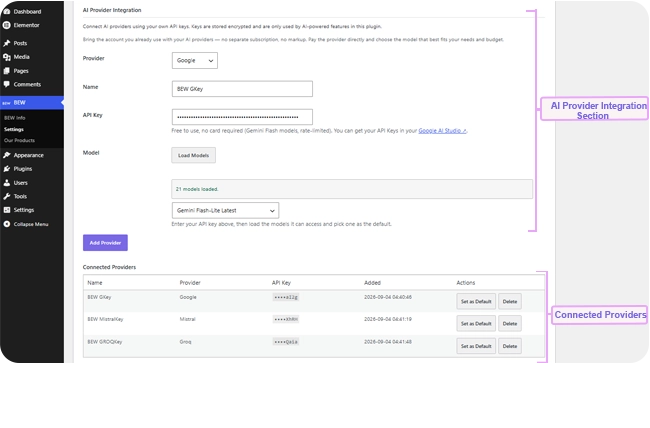
- Go to BEW → Settings → AI Builder.
- Open the AI Providers section and connect a provider with your API key.
- If you also want to generate product images, make sure an image-capable model is available too.
Where to Find It #
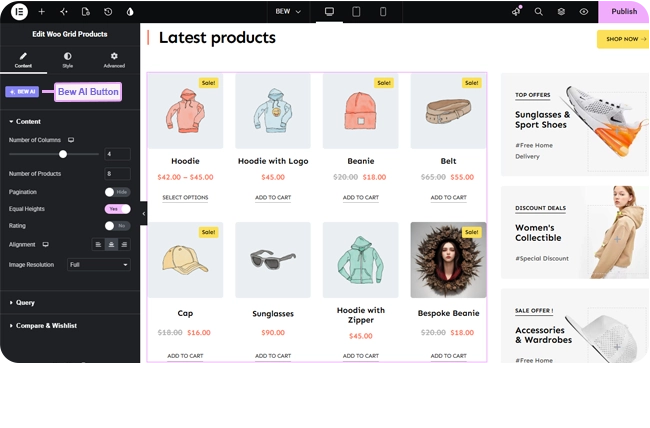
Select a supported product-listing widget that has real products or categories showing in the preview. A ✨ BEW AI button appears once BEW finds eligible items in that widget.
How to Generate #
- Click the ✨ BEW AI button.
- The card lists the products or categories currently shown in that widget, each with a checkbox, plus a Select all option at the top. Check only the ones you actually want to update.
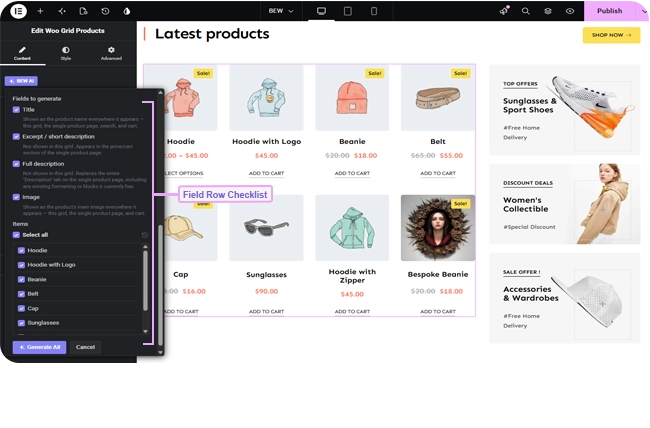
- Choose a Provider and Model.
- Write one Instruction describing the tone or angle you want — it’s applied to every product or category you’ve checked.
- Click Generate.
- Review each item’s generated title, description, and image in the preview, then click Apply to save all of them, or Cancel to discard the whole batch.
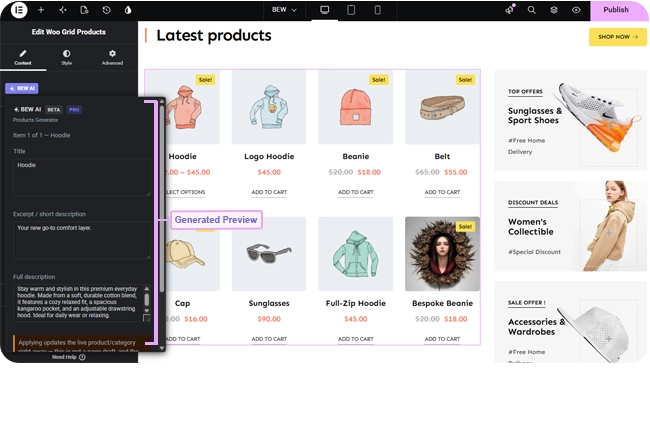
Note: Apply here writes to the real product or category in your store, not just to this widget. It never touches a product’s URL slug. For a first try, apply to a small batch before running it across your whole catalog.
Reusing Instructions with Presets #
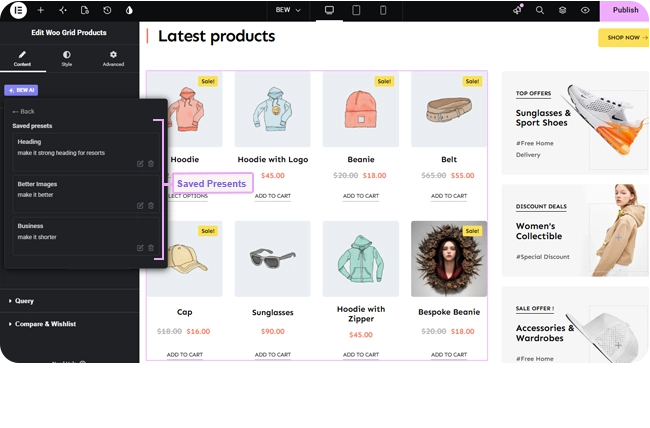
Save an instruction you reuse across product batches as a preset:
- Type your instruction, then click Save as preset.
- Give it a short name and confirm.
Next time, open the Load a saved preset dropdown to apply it instantly. Manage your saved presets — rename or delete them — from the Manage presets link above the instruction field.
Browsing Previous Generations #
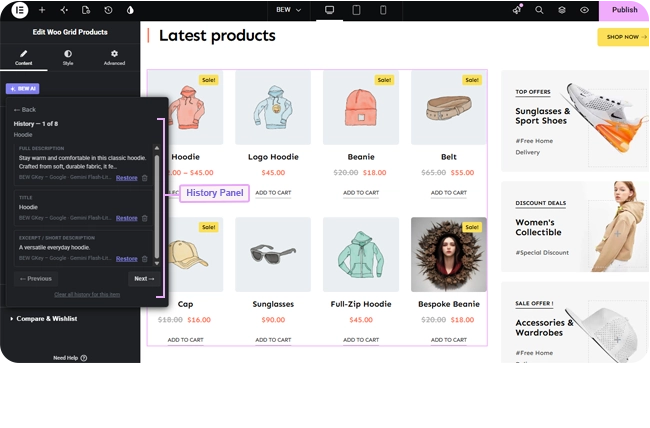
History is tracked per product and per field. Open a specific product’s history icon to browse its past generations and restore an earlier one.
Tips for Better Results #
- Write instructions with your actual customers in mind — the tone that fits a boutique product page rarely fits a wholesale catalog.
- Try descriptions on a few products first, review them, then run a larger batch once you’re happy with the instruction.
- If you only want new images, you can leave the rest of a product’s content untouched by reviewing and only applying what you need — check History if you want to compare before and after.
Frequently Asked Questions #
#
Yes. Products Generator is a Pro feature.
#
Beyond your BEW Pro license, you pay your AI provider directly for what you generate, at their normal rates, using your own API key. BEW AI doesn’t add a markup.
#
No. It only edits products or categories that already exist and are currently showing in the widget you’re working on.
#
No. Products Generator never touches a product or category’s slug/permalink, so existing links keep working.
#
Since this changes an actual product or category record rather than a page setting, Elementor’s own Undo doesn’t cover it. Use that item’s History to restore the previous version instead.


