

Connect your own AI provider account so every BEW AI generator can create content — no separate subscription, no markup, you pay the provider directly.
What is AI Provider Integration? #
BEW AI doesn’t run its own AI service or resell access to one. Instead, it connects directly to an AI provider you already use — or want to start using — with your own API key. You choose the provider and the exact model, and you’re billed by that provider at their normal rates. BEW AI never adds a markup or requires its own subscription for generation itself.
You only need to set this up once. Every generator — Text, Image, Bulk, Repeater, Products, and Blog — reuses the same connected providers.
Note: Your API keys are stored encrypted in your site’s database and are only used by BEW’s own AI features — they’re never shared with anyone else.
Where to Find It #
Go to BEW → Settings → AI Builder, then scroll down to the AI Provider Integration section.

How to Connect a Provider #
- Open BEW → Settings → AI Builder.
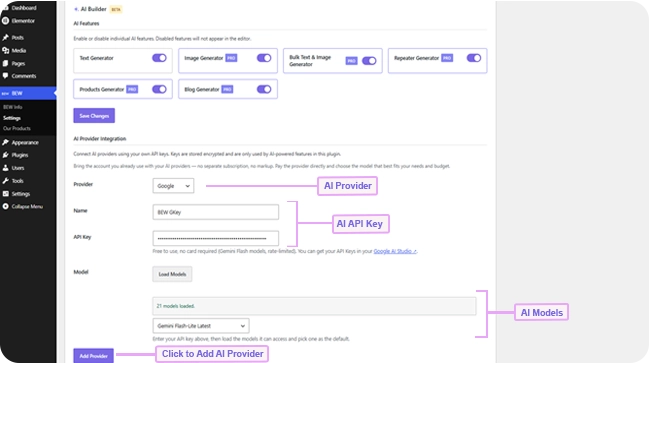
- Under AI Provider Integration, choose a Provider from the dropdown.
- (Optional) Give it a Name — useful if you’re connecting more than one key, e.g. separate keys for different clients or accounts.
- Get an API key from that provider’s own site (see the Supported Providers list below for direct links), then paste it into the API Key field.
- Click Load Models, then pick which model this connection should use by default.
- Click Add Provider.
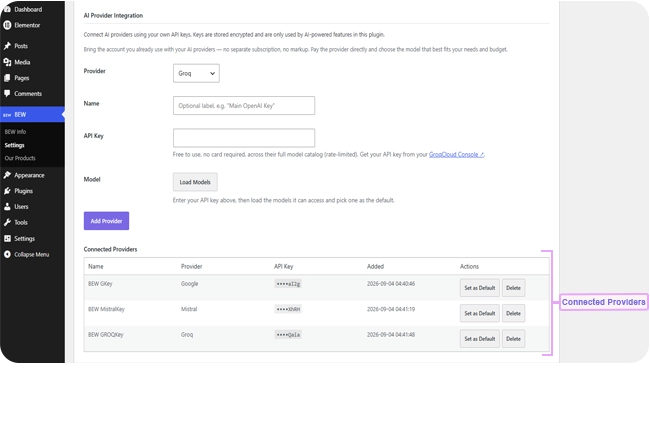
Your new connection now appears in the Connected Providers table below the form, with its key shown only as its last few characters — the full key is never displayed again once saved.
Choosing a Default Provider #
If you connect more than one provider, one of them needs to be the default — it’s what a generator card uses automatically unless you switch it for that specific generation. Click Set as Default next to any row in the Connected Providers table to change which one is marked.
Removing a Connection #
Click Delete next to a row in the Connected Providers table to remove that connection. Any card that was using it falls back to whichever provider is marked default, or the next connected one if none is marked.
Supported Providers #
Each provider has its own pricing and free-tier terms, set by that provider — not by BEW.
| Provider | Free tier | Get your API key |
|---|---|---|
| Yes — no card required (Gemini Flash models, rate-limited) | Google AI Studio | |
| OpenRouter | Includes free models with no card required | OpenRouter Account |
| Mistral | Rate-limited free tier for evaluation | Mistral Console |
| Groq | Yes — no card required, full model catalog (rate-limited) | GroqCloud Console |
| OpenAI | No free API tier (a ChatGPT Plus subscription doesn’t cover this) | OpenAI Account |
| Anthropic (Claude) | No free API tier (a Claude Pro subscription doesn’t cover this) | Anthropic Account |
| Replicate | No free tier — pay-per-run | Replicate Account |
| xAI (Grok) | Requires a paid account | xAI Console |
| Perplexity | Paid service ($10 free credit on signup) | Perplexity Account |
Tips #
- New to AI generation? Start with a free-tier provider like Google or Groq before committing to a paid one.
- Only Provider connections with an image-capable model loaded will show up when using Image Generator, Bulk, or any other card generating images.
- If you manage more than one site or client account with the same provider, give each connection a clear Name — it’s the only thing that tells rows apart in the Connected Providers table.
Frequently Asked Questions #
#
Yes. API keys are stored encrypted in your site’s database and are only used by BEW’s own AI-powered features.
#
No — connecting a provider itself is free. You pay that provider directly for what you generate, at their own rates, using your own API key. (Pro-only generators still require a separate BEW Pro license, independent of provider costs.)
#
Yes. Each connection is its own row in the Connected Providers table, so you can keep separate keys — for separate accounts or clients — side by side.
#
An error saying the key was rejected means it’s incorrect, expired, or revoked — check it against your provider’s own dashboard. An error about rate limits or quota means the key itself is valid but you’ve hit that provider’s usage cap — wait a moment and try again, or check your usage on their dashboard.
#
Whichever you already use, or want to start with — there’s no wrong choice, and you can connect more than one. See the Supported Providers table above for each one’s free-tier terms and where to get a key.


