Skip to content
default-logo
  • Home
  • Templates
  • Widgets
  • Modules
  • AI Builder
  • Pricing
  • Support
Buy Now

Getting Started

3
  • How to Install & Update BEW
  • How to Install, Activate & Update BEW Pro
  • BEW Dashboard & Settings Overview

How to use BEW Template Library

5
  • Getting started with Template Library
  • About Kits, Pages & Sections
  • Template Library Modal Guide
  • How to Insert Templates
  • Required Plugins When Inserting Templates

How to use BEW Widgets

24
  • Getting started with Widgets
  • How to Setup BEW Site Logo
  • How to use Dropdown Nav
  • How to use Woo Cart
  • How to use Woo Search
  • How to use Woo My Account
  • How to use Woo YITH Wishlist
  • How to use Woo YITH Compare
  • How to use Blog Grid
  • How to use Contact Form 7
  • How to use Woo Categories
  • How to use Woo Products List
  • How to use Woo Categories List
  • How to use Woo Archive Carousel
  • How to use Woo Archive Products
  • How to use Image Carousel [ PRO ]
  • How to use Testimonial Slider [ PRO ]
  • How to use Woo Product Slider [ PRO ]
  • How to use Woo Product Accordion [ PRO ]
  • How to use Woo Product Tabs [ PRO ]
  • How to use Woo Grid Carousel [ PRO ]
  • How to use Woo Hot Deals [ PRO ]
  • How to use Woo Grid Products [ PRO ]
  • How to use Query Management

How to use BEW Site Modules

4
  • Getting started with Site Modules
  • How to use Back to Top
  • How to use Site Preloader
  • How to use Reading Progressbar [PRO]

How to use BEW AI Builder

11
  • Getting Started with BEW AI
  • AI Provider Integration
  • How to use Text Generator
  • How to use Image Generator
  • How to use Bulk Text & Image Generator
  • How to use Repeater Generator
  • How to use Products Generator
  • How to use Blog Generator
  • How to use Saved Presets
  • How to use Generation History
  • Troubleshooting AI Builder

Frequently Asked Questions (FAQs)

1
  • BEW Frequently Asked Questions
View Categories
  • Home
  • Docs
  • How to use BEW AI Builder
  • How to use Saved Presets

How to use Saved Presets

3 min read

Save an instruction you use often as a named preset, then apply it instantly on any field, in any generator, instead of retyping it every time.

What are Saved Presets? #

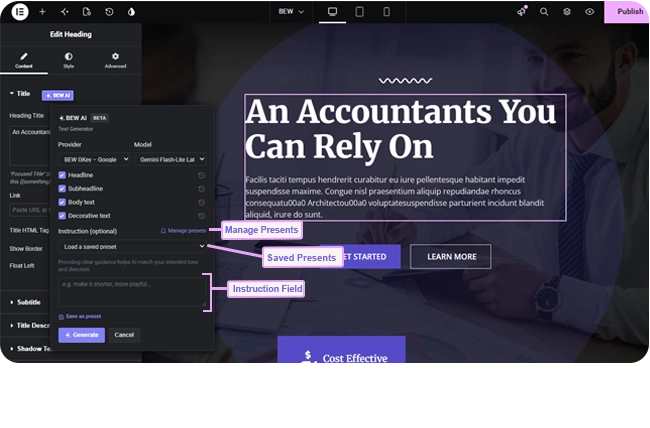
A preset is a named, reusable instruction — the same free-text description you’d normally type into a generator’s Instruction field, saved once and available everywhere afterward. If you keep writing the same kind of guidance (“friendly, upbeat tone, under 20 words” or “consistent with our brand’s photography style”), save it once as a preset instead.

Presets aren’t tied to one field, one widget, or even one generator. A preset saved while using Text Generator is just as available from Image Generator, Products Generator, or any other card — they all share the same list.

Where to Find It #

Open any ✨ BEW AI card. Above the Instruction field, you’ll see a Load a saved preset dropdown and a Manage presets link. Below the Instruction field is a Save as preset link.
How to Save a Preset #

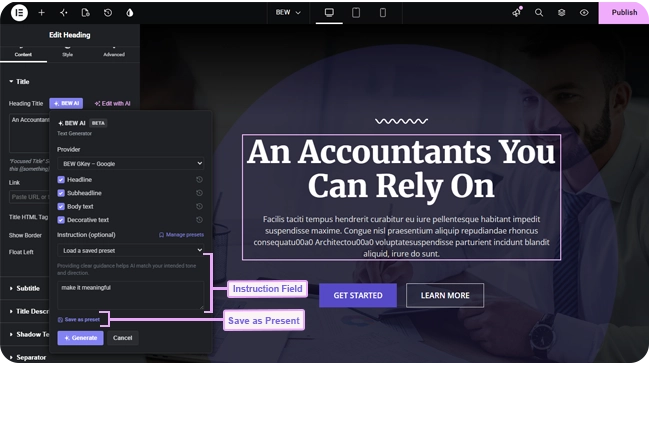
  1. Type your instruction into the Instruction field, as usual.
  2. Click Save as preset.
  3. Give it a short, recognizable name and confirm.
How to Use a Preset #

Open the Load a saved preset dropdown on any field, in any generator, and select it. The Instruction field fills in with the preset’s saved text — you can still edit it for this one generation without changing the saved preset itself.

Managing Your Presets #

Click Manage presets to see every saved preset in one list, each with a preview of its full instruction text. From there you can rename a preset or delete it — deleting removes it everywhere, not just from the card you opened it in.

Tips #

  • Name presets by what they do, not where you first used them — “Short & punchy” is more useful later than “Homepage hero instruction.”
  • A preset written for text works just as well as a starting point for an image instruction, and vice versa — it’s just saved text, reused wherever you need it.
  • Editing the Instruction field after loading a preset doesn’t change the saved preset — save it again under a new name if you want to keep the edited version too.

Frequently Asked Questions #

#

They’re available everywhere, the same as Generation History. Presets aren’t a Pro-only extra — the generator itself already determines whether a card is free or Pro.

#

Yes — that’s the point. Every generator reads from the same saved list, so a preset you save in one card is immediately available in every other one.

#

No practical limit — save as many as you find useful. If your list grows long, the Manage presets view is the easiest place to review and prune the ones you no longer need.

#

No. A preset is only used at the moment you load it into the Instruction field — deleting it later has no effect on anything you already applied.

Updated on September 7, 2026

What are your Feelings

  • Happy
  • Normal
  • Sad

Share This Article :

  • Facebook
  • X
  • LinkedIn
  • Pinterest
How to use Blog GeneratorHow to use Generation History
Table of Contents
  • What are Saved Presets?
  • Where to Find It
  • How to Save a Preset
  • How to Use a Preset
  • Managing Your Presets
  • Tips
  • Frequently Asked Questions
    • Are presets available on the free Text Generator, or only on Pro cards?+
    • Can I use the same preset across different generators?+
    • Is there a limit to how many presets I can save?+
    • If I delete a preset, does that affect content I already generated with it?+
bew-logo-white

Everything you need to build stores and websites with Elementor: widgets, modules, 2,500+ templates, and AI content generation — all in one plugin.

Company
  • Affiliate Program
  • Privacy Policy
  • Terms & Conditions
  • Blog & News
Support
  • Support Center
  • Documentation
  • My Account
  • Community Forum
Product
  • Features
  • Templates (3,000+ library)
  • AI Builder
  • Plans & Pricing

Copyright © 2026 BEW. Made with

  • by
  • Bosa Themes