

Every AI generation is saved automatically, so you never lose a version you liked — browse past attempts on any field and restore one instantly, without generating again.
What is Generation History? #
Generation History is a shared feature built into every BEW AI generator — Text, Image, Bulk, Repeater, Products, and Blog. Each time you apply a generated result to a field, that result is saved. Open the field’s history at any point afterward to see what was generated before, and bring any earlier version back with one click.
History is tracked per field, not per generator run. On a card that lists several fields or items at once — Bulk, Repeater, Products, Blog — each individual field or item keeps its own separate history.
Note: Only applied generations are saved to History. If you Cancel a result instead of clicking Apply, it’s discarded and never appears in History.
Where to Find It #
Open the ✨ BEW AI card on any field that has at least one earlier generation. Next to that field’s result, you’ll see a small history icon.
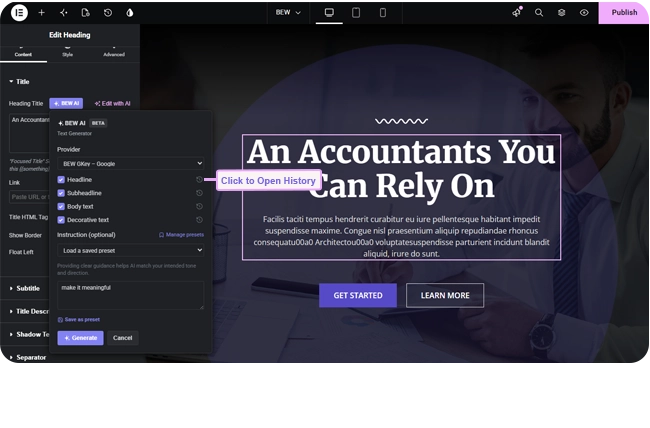
How to Browse and Restore a Previous Generation #
- Click the history icon next to the field.
- Browse the list of past generations for that field — each entry shows the generated content (or image), which provider and model produced it, and roughly when it was made.

- Click Restore on any entry to write it back into the field immediately.
Restoring doesn’t call the AI again — it’s instant, and free, since nothing is generated. It simply puts an earlier saved value back.
Deleting History #
Each entry has its own delete icon, for removing a single generation you don’t want kept. To clear everything at once, use the Clear all history for this page link at the bottom of the History panel — this removes every saved generation for every field on the current page, not just the one field you have open.
Tips #
- Regenerating isn’t destructive — your previous result is already safe in History before you click Generate again.
- If you’re comparing a few different instructions, apply each one and check History afterward instead of trying to remember which result you liked best.
- On Products and Blog Generator, use History rather than Elementor’s Undo to revert a change — those two write directly to the database record, which Elementor’s own page-editor Undo doesn’t cover.
Frequently Asked Questions #
#
No. Browsing and restoring from History never calls your AI provider, so it never uses your API quota. Only Generate and Regenerate do that.
#
It’s available everywhere. History isn’t a Pro-only extra — every generator, free or Pro, gets the same History feature because the generator itself already determines whether a card is free or Pro.
#
No. Clearing history only removes the saved list of past generations — it doesn’t change whatever is currently applied to your fields.
#
No. History is scoped to the page or post you’re currently editing — each page keeps its own separate history.


