

Answers to the most common issues across every BEW AI generator — the button not showing up, an empty model list, and errors when generating.
The ✨ BEW AI button doesn’t appear on a field #
Check these, in order:
- An AI provider is connected under BEW → Settings → AI Builder → AI Provider Integration. No button appears anywhere until at least one provider is connected.
- That specific generator is switched on under AI Features on the same settings page.
- If it’s one of the five Pro generators, your BEW Pro license is active.
- The field or widget is actually a supported type for that generator. Not every field is eligible — see that generator’s own guide for which widgets and fields it covers.
For Products and Blog Generator specifically, the button only appears once the widget has real products, categories, or posts actually rendering in the preview — an empty widget has nothing for BEW to detect.
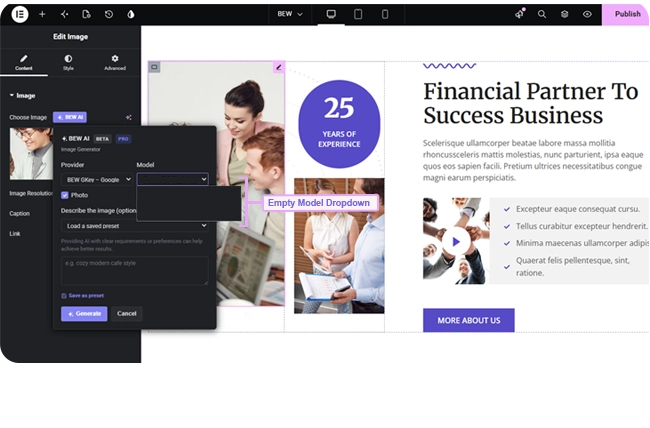
The Model dropdown is empty #
This means the connected provider doesn’t have a model loaded that matches what you’re generating — most often, you’re generating an image and the connected provider or model doesn’t support image generation. Connect a provider that offers an image-capable model, or load models again for your existing connection under AI Provider Integration.
“This API key was rejected” #
The provider itself has refused the key — it’s incorrect, expired, or has been revoked. Check the key against your provider’s own dashboard, and reconnect it under AI Provider Integration if needed.
“Rate limit or quota reached for this API key” #
The key itself is valid — you’ve simply hit that provider’s own usage limit, whether that’s a free-tier rate limit or a paid quota you’ve used up. Wait a moment and try again, or check your usage on the provider’s own dashboard.
“The provider is having issues right now” #
This means the provider’s own service returned a server error — not something wrong with your key or your instruction. It’s on their end; try again shortly.
Nothing changed after I clicked Apply #
For Text, Image, Bulk, and Repeater Generator, Apply writes into the widget’s own Elementor setting — if you don’t see the change, make sure you’re looking at the right field, and that the widget itself is selected in the editor.
For Products and Blog Generator, Apply writes directly to the real product, category, or post record. The change is live in your store or blog immediately, even though it may not visibly refresh in the current preview until you reload it.
I need to undo a generation #
For Text, Image, Bulk, and Repeater Generator, Elementor’s own Undo (Ctrl/Cmd+Z) covers it, since the change lives in the page’s own settings. For Products and Blog Generator, it doesn’t — those write to a database record outside the page itself, so use that field’s own Generation History to restore the previous version instead.
Still Stuck? #
Double-check the specific generator’s own guide — each one covers its exact requirements and field types in more detail than fits here.


