Skip to content
default-logo
  • Home
  • Templates
  • Widgets
  • Modules
  • AI Builder
  • Pricing
  • Support
Buy Now

Getting Started

3
  • How to Install & Update BEW
  • How to Install, Activate & Update BEW Pro
  • BEW Dashboard & Settings Overview

How to use BEW Template Library

5
  • Getting started with Template Library
  • About Kits, Pages & Sections
  • Template Library Modal Guide
  • How to Insert Templates
  • Required Plugins When Inserting Templates

How to use BEW Widgets

24
  • Getting started with Widgets
  • How to Setup BEW Site Logo
  • How to use Dropdown Nav
  • How to use Woo Cart
  • How to use Woo Search
  • How to use Woo My Account
  • How to use Woo YITH Wishlist
  • How to use Woo YITH Compare
  • How to use Blog Grid
  • How to use Contact Form 7
  • How to use Woo Categories
  • How to use Woo Products List
  • How to use Woo Categories List
  • How to use Woo Archive Carousel
  • How to use Woo Archive Products
  • How to use Image Carousel [ PRO ]
  • How to use Testimonial Slider [ PRO ]
  • How to use Woo Product Slider [ PRO ]
  • How to use Woo Product Accordion [ PRO ]
  • How to use Woo Product Tabs [ PRO ]
  • How to use Woo Grid Carousel [ PRO ]
  • How to use Woo Hot Deals [ PRO ]
  • How to use Woo Grid Products [ PRO ]
  • How to use Query Management

How to use BEW Site Modules

4
  • Getting started with Site Modules
  • How to use Back to Top
  • How to use Site Preloader
  • How to use Reading Progressbar [PRO]

How to use BEW AI Builder

11
  • Getting Started with BEW AI
  • AI Provider Integration
  • How to use Text Generator
  • How to use Image Generator
  • How to use Bulk Text & Image Generator
  • How to use Repeater Generator
  • How to use Products Generator
  • How to use Blog Generator
  • How to use Saved Presets
  • How to use Generation History
  • Troubleshooting AI Builder

Frequently Asked Questions (FAQs)

1
  • BEW Frequently Asked Questions
View Categories
  • Home
  • Docs
  • How to use BEW Template Library
  • Getting started with Template Library

Getting started with Template Library

1 min read

The Template Library is BEW’s built-in collection of ready-made Kits, Pages, and Sections — designed layouts you can drop straight onto a page from inside the Elementor editor, instead of building from scratch. This guide is the starting point: where to find it, how it’s organized, and what to expect.

Opening the Template Library #

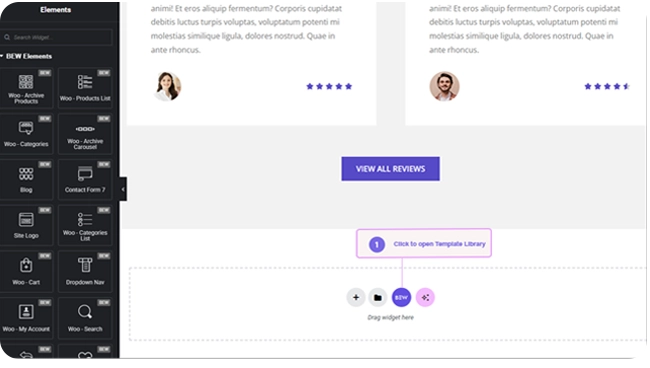
Open any page in the Elementor editor. The Template Library’s icon — a purple circle with the BEW logomark, no text label — sits in two places:

  • On a blank page, inside the “drag widget here” placeholder itself, next to Elementor’s own Add Template button.

Either one opens the same Template Library panel.
A Quick Tour #

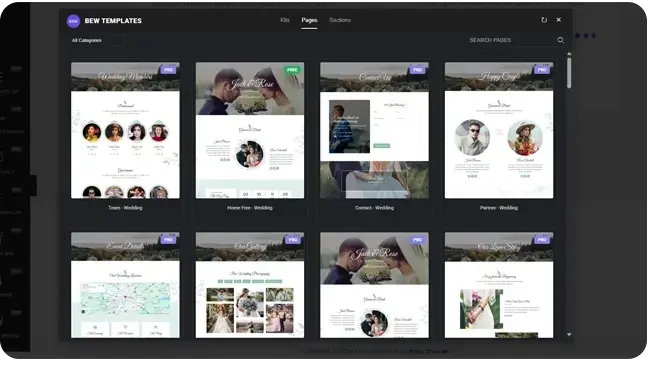
The panel opens with three tabs — Kits, Pages, and Sections (Pages is selected by default) — a category dropdown, and a search box above a grid of template cards. Hovering a card reveals an Insert button; clicking a card’s thumbnail opens a larger preview. The full set of controls — search, filtering, scrolling, previewing — is covered in its own guide linked below.
From here, the rest of this doc series covers:

  • About Kits, Pages & Sections — what each content type is and how Kits are organized.
  • Template Library Modal Guide — search, tabs, filtering, scrolling, and previewing in detail.
  • How to Insert Pre-built Templates — what happens when you click Insert, and where the content lands.
  • Required Plugins When Inserting Templates — what happens when a template needs a plugin you don’t have installed.

Requirements #

  • Elementor active — the Template Library is built into the Elementor editor and doesn’t appear anywhere else. Without Elementor active, BEW shows an admin notice instead.
  • An internet connection — template designs, thumbnails, and previews are loaded from Bosa Themes’ template server as you browse, so the library needs your site to be able to reach the internet.
  • Some templates and individual Kit items require an active BEW Pro license to insert; browsing and previewing them is always free.

Note: The Template Library is only ever accessed from inside the Elementor editor — there’s no separate browsing page in wp-admin.

Frequently Asked Questions #

#

Confirm BEW and Elementor are both active, and that you’re editing the page with Elementor (not the native WordPress block editor). Also check wp-admin → BEW → Settings — there’s a Template Library toggle there, and it may have been switched off.

#

No — the library itself, and most templates in it, are free. Individual templates marked “Pro” need an active BEW Pro license to insert, though you can still browse and preview them without one.

#

No — browsing is done exclusively from inside the Elementor editor’s Template Library panel. There’s no separate admin page for it.

Updated on October 27, 2026

What are your Feelings

  • Happy
  • Normal
  • Sad

Share This Article :

  • Facebook
  • X
  • LinkedIn
  • Pinterest
Required Plugins When Inserting TemplatesAbout Kits, Pages & Sections
Table of Contents
  • Opening the Template Library
  • A Quick Tour
  • Requirements
  • Frequently Asked Questions
    • I can't find the Template Library icon. What's wrong?+
    • Do I need BEW Pro to use the Template Library?+
    • Can I manage or browse templates from wp-admin instead of the editor?+
bew-logo-white

Everything you need to build stores and websites with Elementor: widgets, modules, 2,500+ templates, and AI content generation — all in one plugin.

Company
  • Affiliate Program
  • Privacy Policy
  • Terms & Conditions
  • Blog & News
Support
  • Support Center
  • Documentation
  • My Account
  • Community Forum
Product
  • Features
  • Templates (3,000+ library)
  • AI Builder
  • Plans & Pricing

Copyright © 2026 BEW. Made with

  • by
  • Bosa Themes